Pricing Wizard
From Amicus


| Amicus | |
| Pricing Wizard | |
| See Also Submit feedback on this topic | |
| Key Areas > Stock Control And Products > Pricing > Pricing Wizard |
Glossary Item Box
The Pricing Wizard allows you to enter a product price change for promotions, customers and different sites. At each step selections determine the conditions for which the price change will apply to a product. A price change can apply to a single item, a product line or a range of products.
The Pricing Wizard can be opened by selecting the Pricing Wizard button from the Price Change dialog. Alternatively select Products, Pricing then Pricing Wizard from the menu.
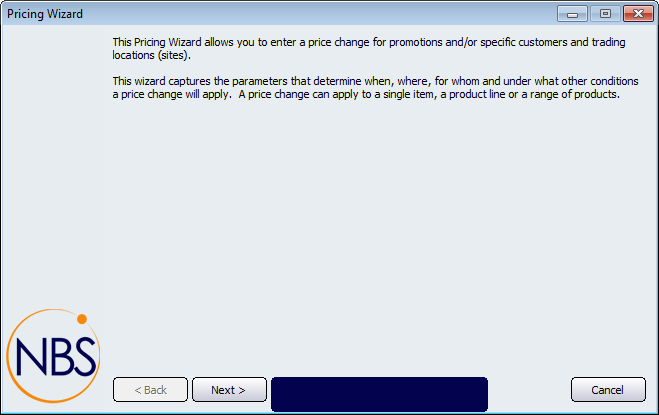
Figure : Wizard introduction
The basic steps to creating a promotional price are:
-
Select the Change Type
-
Select product related conditions
-
Set the location and/or customer related conditions
-
Add, edit or remove product, location or customer conditions
-
Select Adjustments to apply to the rule or create new ones
-
Creating a new adjustment set the Adjustment Type
-
Creating a new adjustment set the way the new adjustment is applied
-
Summary of the rules