Volume Adjustment
From Amicus


| Amicus | |
| Volume Adjustment | |
| See Also Submit feedback on this topic | |
| Key Areas > Stock Control And Products > Pricing > Volume Adjustment |
Glossary Item Box
The Volume Adjustment dialogue allows for the sale of bulk items in volumes, where each adjustment to the volume has a set price if the products are sold by a set quantity. The more volume of products that is sold, the cheaper the cost per qty. This allows you to entice customers to buy in higher volumes. The Volume Adjustment dialogue can be opened by selecting the Volume Adjustment button from the Promo Pricing dialog. Alternatively, you can also access the Volume Adjustment dialog by selecting Products from the Amicus Toolbar, click on Pricing and then click on Quick Volume Adjustment Entry. Doing either of these options will open up the Volume Adjustment screen.
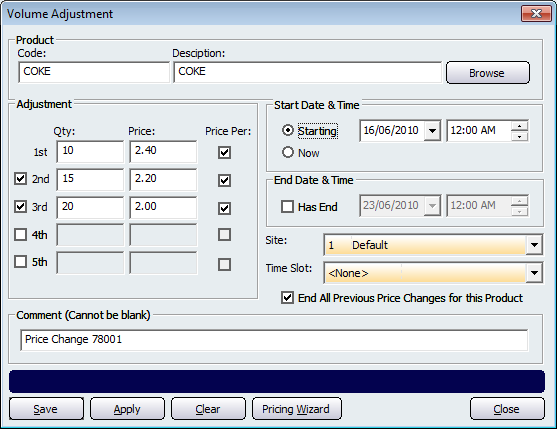
Figure : Volume Adjustment dialog
Product
The Product section of this screen allows you to select the product from your product list that will have its price changed based on the volume sold. There are multiple ways in which you can select a product. If you know the product code then you can enter it into the Code field and press either Enter or Tab to select the product. If you know the description (or partial description) enter it into the Description field and press Enter or Tab. This will then open up the Select a Product screen where you can select the product from the list. Click on the Browse button to bring up a complete list of all your products, select the product from the list and click on the Select button to add it to the volume adjustment screen.
Adjustment
The Adjustment section is used to configure the price adjustment for the selected product. Put the required quantity into the Qty field and then use the Price field to enter the price of the products. Select the Price Per checkbox if you want to change the price for each of the products sold. For example, if the Qty field had 10 and the Price field has $2.50 and the Price Per box was ticked then the total price will be 10x$2.50 = $25.
The 2nd, 3rd, 4th, and 5th fields can be used to adjust the price further if the customer buys in higher quantities.
By default the Starting checkbox will be selected which allows you to select the Date and Time at which the volume adjustment price rule will take effect. Select the Now checkbox if you want the price change to take effect immediatly after the volume adjustment rule is Applied or Saved.
End Date & Time
Select the Has End checkbox if you would like the price adjustment to finish at a specified time. You can select the Date and Time at which the price adjustment will no longer be applied.
Site Details
You can also configure the Site where the price adjustment will take effect. This means that only the products sold at the selected site will have their prices adjusted based on the volume sold.
Time Slot
The Time Slot dropdown box allows you to configure the time at which the price adjustment will take place. A guide on how to configure time slots can be found on the Add/Edit Time Slots page.
Comment
The Comment section of the Volume Adjustment screen is used to describe the price change. Amicus will automatically populate this field with a comment. It is recommended that you enter your own comment that describes the price change. Note that this field cannot be left blank and if it is blank you will not be able to apply or save the record.
Buttons
Buttons that perform actions on the Volume Adjustment screen include: Save, Apply, Clear, Pricing Wizard - Clicking on this will bring up the Pricing Wizard dialogue, and Close.
Sale Screen Example
Below is an example of a volume price adjustment that has taken place on the sales screen. In this example the product is coke which, when a Qty of 15 are purchased, will have its Price Per changed to $2:20 (as entered in the Volume Adjustment screen shot above).
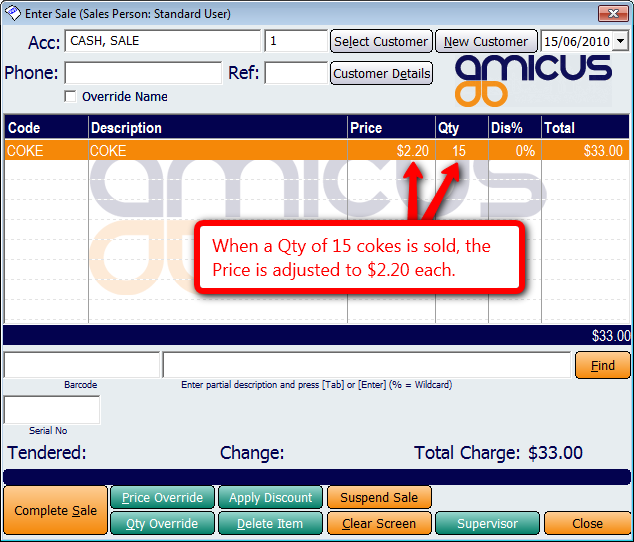
Figure : Volume Adjustment dialog