Price Change dialog
From Amicus


| Amicus | |
| Price Change dialog | |
| See Also Submit feedback on this topic | |
| Key Areas > Stock Control And Products > Pricing > Price Change dialog |
Glossary Item Box
The Price Change dialog enables simple price changes for a product line. This allows you to change the price of a product and apply it to a single site, or to all of your sites. This makes price changes easier to manage and control. The Price Change screen can be opened by selecting Price Change from the Promo Pricing dialog. Alternatively, select Products from the Amicus Toolbar, click on Pricing then select Quick Price Entry from the menu. Doing either of these options will open up the Price Change screen.
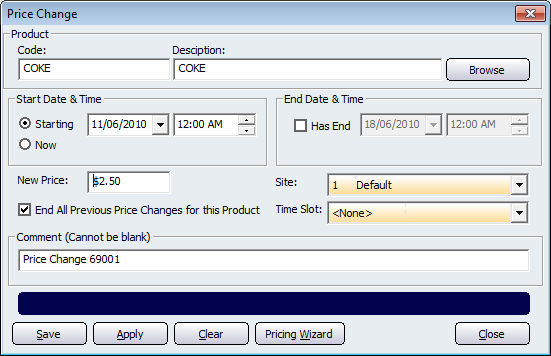
Figure : Pricing Dialog
The Product section of this screen allows you to select the product from your product list whose price is going to be changed. There are various ways in which you enter a product onto the screen. Firstly, if you know the product code then you can enter it into the Code field and press either Tab or Enter. This will automatically fill the Description field with the products description.
You can also use the Description field to search for a product. If you know part of its description then you can enter it into the Description field and then press Tab or Enter. Doing this will bring up the Select a Product dialogue with products that match the details you entered into the Description field.
You can also select a product from your product list by clicking on the Browse button. This will also bring up the Select a Product dialogue with all the products on your database. Select the product from the list and click on the Select button.
Once you have selected your product you can set the Start Date & Time. Selecting the Starting box will allow you to configure the date and time at which the products price will change. You can also set an End Date & Time for when the price change will end. To do this select the Has End checkbox and configure the date and time.
The New Price field is where you enter the new price for the product. The Site dropdown list allows you to configure the site(s) where the price change will take effect. Tick the End All Previous Price Changes for this Product checkbox if you want the new price change to supersede any previous price changes that apply to the product.
The Time Slot dropdown list allows you to configure the price change to only occur during scheduled time slots. A guide on time slots and how they are configured can be found on the Add/Edit Time Slot page.
The Comment (cannot be blank) field is automatically populated with a comment. It is recommended that you enter your own comment that is meaningful and describes the price change.
Other buttons that perform actions on the Price Change dialogue includes: Save, Apply, Clear, Pricing Wizard - Clicking this will open up the Pricing Wizard dialogue, and Close.