Sales
From Amicus


Glossary Item Box
The Sales tab allows you to define your preferences for the different sales screens in NBS Amicus for this register.
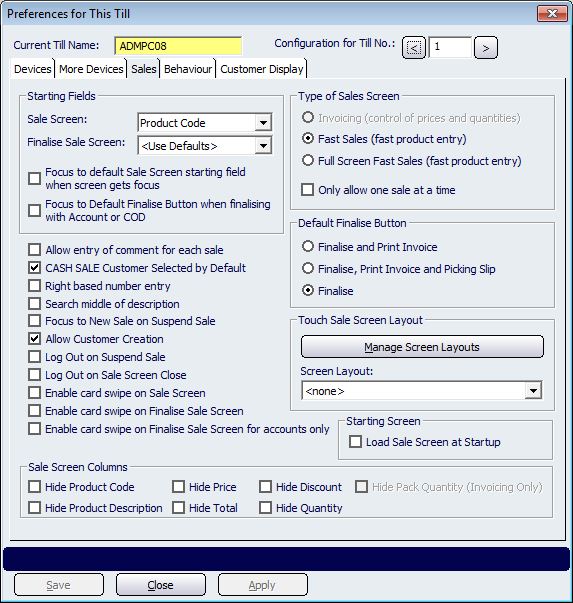
Figure : Use these options to set the preferences for the different sales screens in NBS Amicus
The Starting Fields options allow you to choose the starting point for the cursor in the sales entry screens on this register. To select a starting field for the Sale Screen, select a field from the drop down list. Possible options here include Product Code, Customer Number, Customer Name and Customer Phone. Repeat the same process for the Finalise Sale Screen. The options available here include <Use Defaults>, Payment Type, Amount Tendered and Comment. There are also options to direct the focal point, these are Focus to default Sale Screen starting field when screen gets focus and Focus to Default Finalise Button when finalising with Account or COD.
The Starting Screen options allow you to choose a default screen that displays when NBS Amicus is first started. The options are Load Sale Screen at Startup; suited to retailers and wholesalers.
NBS Amicus allows you to utilise different sales screens on each register. The Type of Sale Screen options let you select the standard sale screen to use on this register. The default option will be the one selected in the NBS Amicus settings initial setup. Selecting Invoicing (control of prices and quantities), will display a screen that is designed to create a sales invoice, and therefore allow the entry of a greater level of detail during the sales process. It is suited to retailers and wholesalers who need to enter quantities. The Fast Sales (fast product entry) option is designed to speed up data entry and to reduce the number of keystrokes required. Generally this screen is used in a retail environment where you are providing the customer with a docket from a strip printer. Selecting the Full Screen Fast Sales (fast product entry) option will allocate the fast sales screen to occupy the whole screen area. The Fast Sales options are suited to retailers selling barcoded items in mostly single quantities. Selecting the Only allow one sale at a time checkbox prevents another sale beginning on this register, before the last sale is completed or suspended.
The Allow entry of comment for each sale option will automatically prompt you for comments regarding each sale.
The CASH SALE Customer Selected by Default option will automatically select the cash sale customer option every time you start a new sale on this register.
Right based number entry is designed to allow you to enter values without entering the decimal point. For example, to enter the amount of twenty (20) cents, the operator only needs to type 20, where normally they would need to enter the decimal point by typing 0.2.
By default, NBS Amicus initiates simple searches, that is, it does not conduct embedded searches where the text being searched for is contained somewhere within the data. To activate the embedded searching option as your preferred search type, place a tick mark in the check box labelled Search middle of description. While this option is likely to return more search results, it can potentially take a little longer to complete.
The Focus to New on Suspend Sale option will create a new sale screen after a sale has been postponed.
Another option for this register is Allow Customer Creation option, selecting this lets the person making the sale to add details for a new customer.
The Default Finalise Button section lets you select options to complete a sale on this register. The default option is for Finalise and Print Invoice. The Finalise, Print Invoice and Picking Slip option would be selected for products that are stored at a warehouse. When a printed invoice is not required then the Finalise option would be selected.
The Touch Sale Screen Layout section allows you to select and manage a custom sales screen layout. Select the Screen Layout with the dropdown or create a new with the Manage Screen Layouts button, see Manage Screen Layouts for more information. Note selecting <none> will default to the NBS Amicus default layout.
The Sales Screen Columns section allows you to hide columns from the sales screen. Select the appropriate column by checking the associated box. Note you can only Hide Pack Quantity on the Invoice sales screen.