Pharmacy Fast Sales
From Amicus


| Amicus | |
| Pharmacy Fast Sales | |
| Submit feedback on this topic | |
Glossary Item Box
In a pharmacy setting, where sales are being processed using the Fast Sales method and a touch screen, and the FRED option is also enabled an additional button titled Add Dispensary Item appears on the Enter Sale screen (shown in Figure):
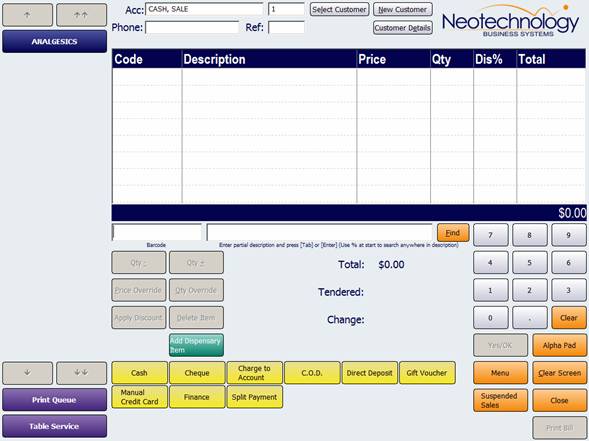
Figure : In pharmacies, the Add Dispensary Item button handles multiple dispensary selections
When clicked, the Add Dispensary Item button allows multiple selections to be made when retrieving prescriptions where customers have more than one prescription to pick up at any one time (see Figure ).
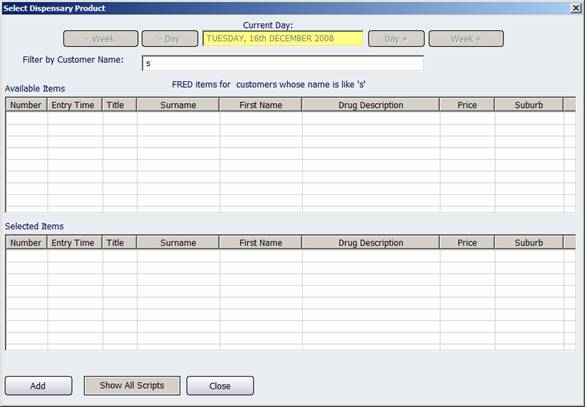
Figure : Selection of prescriptions is done via this screen when using NBS Amicus in a pharmacy
The procedure to follow when selling dispensary items using this screen is as follows:
-
Find the appropriate prescription(s) and transfer each one to the holding area in the bottom half of the screen by selecting with a single touch.
-
To deselect an item, a single touch will return it to the upper screen.
-
When satisfied that all prescriptions have been selected and are present in the holding area, select the Add button (in the bottom left hand corner of the screen). This will transfer all selected prescriptions to the sales screen. From there, proceed as normal.