Customer Display
From Amicus


| Amicus | |
| Customer Display | |
| See Also Submit feedback on this topic | |
| Preferences > This Register > Customer Display |
Glossary Item Box
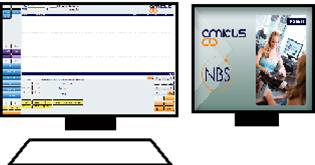
NBS Amicus includes the functionality to display customer friendly screens that are customisable to suit your business needs. In order to use a customer display you will need a second monitor that will act solely as a display screen to your customers.
 < />
< />
Figure : Duel monitor setup
To access the Customer Display settings select File from the Amicus Toolbar followed by Preferences then This Register. Click on the Customer Display tab to open up the following window.
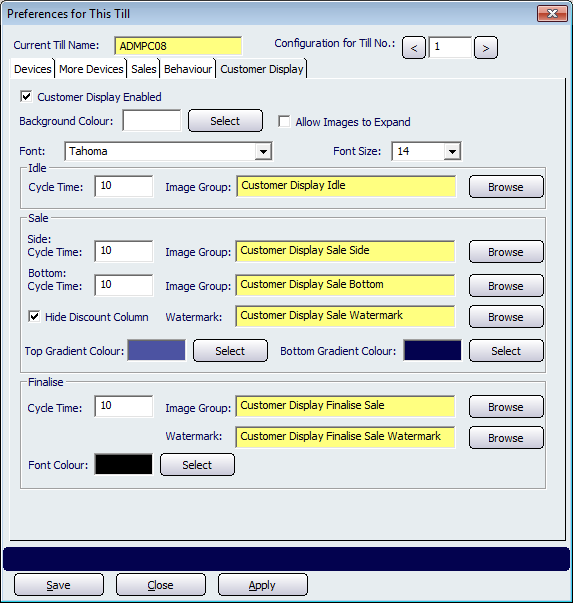
Figure : Till Preferences dialogue
General settings
Customer Display Enabled
Background Colour – Sets the background colour on the Customer Display.
Allow Images to Expand – Forces smaller images to expand to fit the screen size of the second display.
Idle Settings
Sale Settings
Side Cycle Time / Image Path
Bottom Cycle Time / Image Path
Hide Discount Column – Hides the Discount column on the table of purchases.
Top/Bottom Gradient Colour
Finalise Settings