More Devices
From Amicus


| Amicus | |
| More Devices | |
| See Also Submit feedback on this topic | |
| Preferences > This Register > More Devices |
Glossary Item Box
The More Devices tab gives your various options to connect different devices to the selected register.
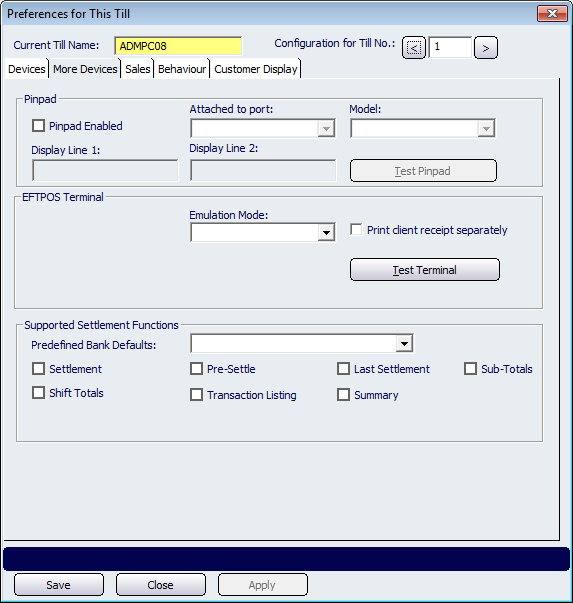
Figure : Use the More Devices tab to specify pinpad devices for your register
If a PinPad is going to be used at the register then check the Pinpad Enable checkbox. Once you have put a tick into the Pinpad Enable checkbox select which port the pinpad is attached to using the Attached to port dropdown list. Use the dropdown list on the model field to select the appropriate Model for your particular reader.
Enter up to two lines of alphanumeric information you want to display in Display Line 1 and Display Line 2. These messages will be displayed to the customer when they are using the Pinpad.
The Test Pinpad button will allow you to test the operation of your PIN pad reader. When using this option, you may be required to enter your key code, depending on your security settings.
The EFTPOS Terminal options allow you to add an electronic fund transfer and point of sales device to this register. Select the appropriate Emulation Mode from the list of Ingenico via PC-EFTPOS, QUEST and TYRO that the terminal will be operating under. Click on the Print client receipt separately if you want to print separate receipts. The Test Terminal button will allow you to test the payment device by doing a testing transaction. This operation is not avaiable for TYRO payment device now.