Make a Sale Using the Invoicing Screen
From Amicus


| Amicus | |
| Make a Sale Using the Invoicing Screen | |
| See Also Submit feedback on this topic | |
| Transactions > Make a Sale Using the Invoicing Screen |
Glossary Item Box
To access the Enter Invoice Sale screen click Make a Sale from the Main Menu, or go to the Sales menu on the Amicus Toolbar and select Enter a Sale.
Note: To use the Enter Invoice Sale screen, the option Invoicing (more control over prices and quantities etc.) must be activated. A guide on how to configure the invoicing sales screen can be found on the Sales tab on the Preferences for This Till screen.
Depending on your individual security settings, you may be asked to log in. Enter your Key Code or Password to enter the sales screen. If the key code or password does not let you enter the sales screen, you will need to have your System Administrator change your personal security settings.
Alternatively, you may logon to the sales screen using your Employee Card by passing your card over the Smart Card reader.
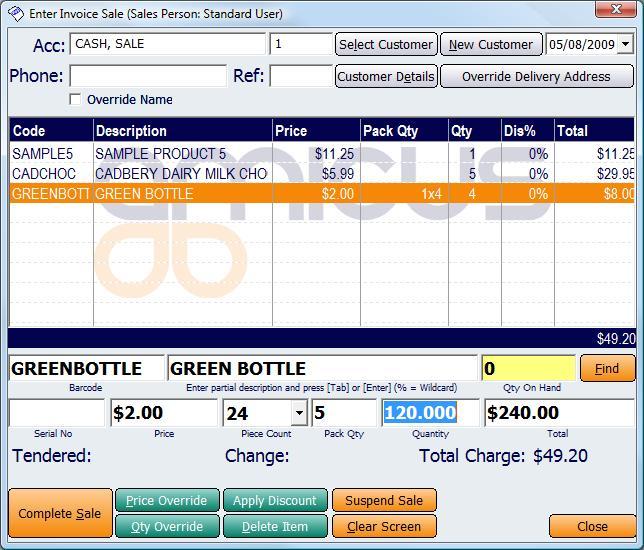
Figure : Making a sale using the Invoicing screen
The top section of the of the Enter Invoice Sale screen is comprised the customers details and information. Details about selecting and managing customers on the invoice sale screen can be found on the Selecting a Customer in Invoice Screen page.
The central section of the invoice sale screen includes information about the sale that is taking place. The fields in this section includes: Code, Description, Price, Pack Qty, Quantity, Dis%, and Total.
The Product Section of the Enter Invoice Sale screen includes: Barcode, Description, Qty On Hand, Serial No, Price, Piece Count, Pack Qty, Qty, and Total. More information regarding the product section of this screen can be found on the Enter the Products Invoicing Screen page.
The bottom of the Enter Invoice Sale screen contains the buttons that perform actions on the sale. Click on the Complete Sale button to bring up the Finalise Sale screen where you can then process the sale.
The Price Override, Qty Override, and Apply Discount buttons allow you to alter the sale. Information on how to use these buttons can be found on the Applying Discounts, Price Overrides & Quantity Overrides page.
The Suspend Sale button allows you to save a sale into Amicus which can then be retrieved and processed at a later time. More information can be found on the Suspending Sales page.
The Clear Screen button will clear the sales screen of any sales. A Clear Sale Information dialogue will pop up asking whether you are sure that you want to clear the sale window. Clicking on Ok will clear the screen whereas clicking on Cancel will not clear the sale information from the sales screen.
The final button on the Enter Invoice Sale screen is the Close button. Click on this button to exit the sales screen.