Applying Discounts, Price Overrides & Quantity Overrides
From Amicus


| Amicus | |
| Applying Discounts, Price Overrides & Quantity Overrides | |
| See Also Submit feedback on this topic | |
| Transactions > How to Make a Sale Using the Fast Sales Screen > Applying Discounts, Price Overrides & Quantity Overrides |
Glossary Item Box
NBS Amicus will allow you to apply discounts, change an items price or quantity, or edit the description for any item in the sale, as long as two important conditions are met:
-
Firstly, the operator has sufficient security access to access this function; and
-
Secondly, the individual product has a combination or all of these options specifically NOT enabled.
If these options are not able to be selected, you should first try entering the Supervisor password or Key Code to enable these functions for this sale. If, after the supervisors password or key code has been entered, some or all of these functions are still not allowed, then the individual product will need to be edited to enable these functions.
Price and Quantity Overrides
The Price and Quantity Override buttons are located on the sales screen. To change the price or quantity of an item in the sale, select the item from the sale list and click either Price Override or Quantity Override. Below is an image that shows how to do this.
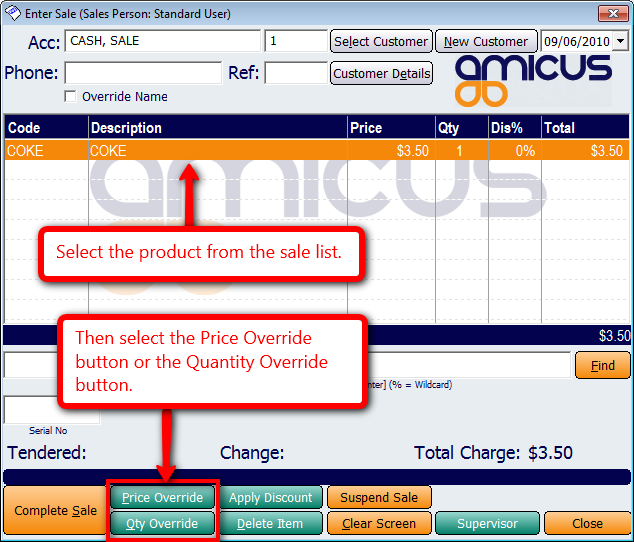
Clicking any one of these buttons will open up the Override Price and/or Quantity screen.
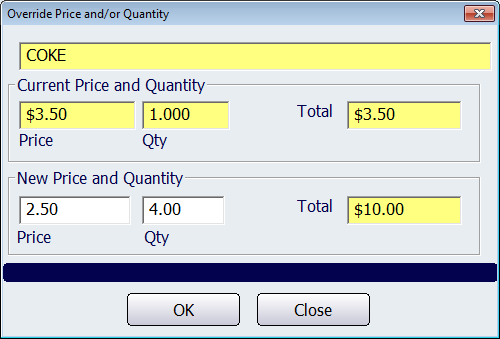
Figure : Override Price &/or Quantity
This screen allows you to change the price of the selected product and/or the quantities of the selected product. The yellow fields on this screen indicate the original values that are on the sales screen and are unable to be edited. If you want to change the price of the product then click on the Price field and enter the new price. To change the quantity of the product being sold, click on the Qty field and enter the new quantity.
Once you have completed the changes to either the Price or Quantity, click on the Ok button to apply the changes to the sales screen. Click on the Close button to exit the Override Price and/or Quantity screen.
Apply Discounts
To apply a percentage discount to a sale item, select the item from the sale list and click Apply Discount. Below is an image demonstrating how to do this.
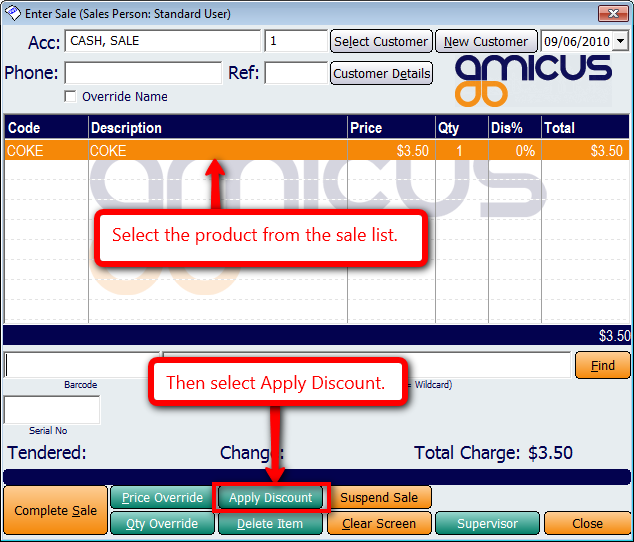
Figure : Apply Discount button on the sales screen
Doing this will open up the Enter Discount screen where you can apply this discount to the product.
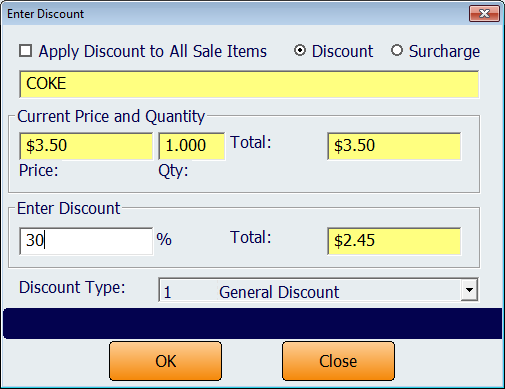
Figure : Enter Discount dialogue.
Tick the Apply Discount to All Sale Items checkbox if you would like the discount to apply to all of the sale items. Whatever discount amount is entered will be applied to the entire sale.
The Discount box is automatically selected when the Enter Discount screen is entered. Enter the discount percentage into the Enter Discount field and then click on OK to apply the discount. If you want to add a surcharge to the product, then select the Surcharge box. The Enter Discount field will change to the Enter Surcharge field. Any amount you enter into the surcharge field will be added onto the product.
Select the Discount Type from the dropdown list. More information about discount types can be found on the Add and Edit Discounts page.
Click on Save to apply the discount (or surcharge) to the sales screen or click on Close to exit the Enter Discount dialogue and return back to the sales screen.