Enter the Products Invoicing Screen
From Amicus


| Amicus | |
| Enter the Products Invoicing Screen | |
| See Also Submit feedback on this topic | |
| Transactions > Make a Sale Using the Invoicing Screen > Enter the Products Invoicing Screen |
Glossary Item Box
Enter the bar code or the product code of the product in the Barcode field. NBS Amicus allows several methods of entering this information.
-
You can either use a bar code scanner and scan the products bar code or product code; or
-
You can manually type the products bar code or product code; or
-
In the Bar Code field, you can type the beginning of a product or bar code, followed by an asterisk (*) and a window will open up containing all matching products. You can then select the product you want from this list; or
-
You can search for the product by entering part of its description into the Enter partial description field and clicking Find or pressing Enter or Tab.
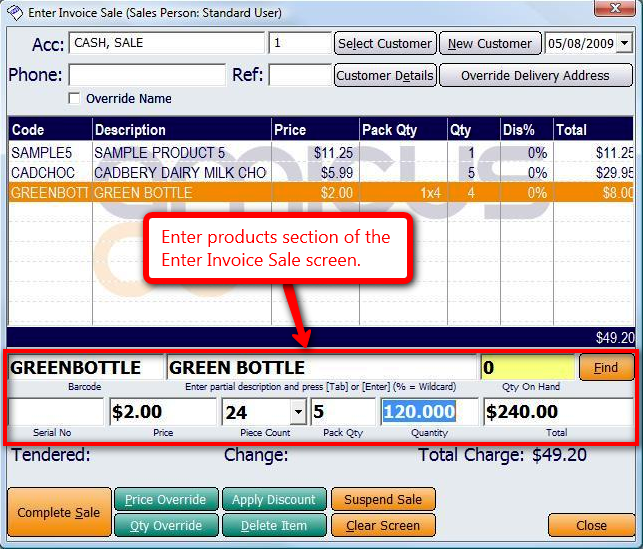
Figure : Enter products section of the Enter Invoice Sale screen
Once you have selected the product you wish to sell, NBS Amicus, by default, will display the normal price for this item. If the price is correct, press either Enter or Tab to accept this price. Alternatively, you may edit this price by simply typing the new unit Price and then pressing either Enter or Tab to save your typed details.
Once you have accepted the price, you can enter the quantity, or number of units, of the product that you are selling. Enter the quantity by typing the number of units into the Qty field, and then press either Enter or Tab.
NBS Amicus allows you to enter a discount percentage to apply to the unit sales price for this product. This discount percentage will only apply to this product. A gude on how to apply discounts and price/quantity overrides to a sale can be found on the Applying Discounts, Price Overrides & Quantity Overrides page.
Finally, you will need to enter the total sales price for this product, which is calculated by multiplying the quantity sold by the unit price for that product. The total sales price does not have to equal the calculated amount. Any variation between the calculated amount and the actual total sales price entered will be shown as a discount on the sales invoice. If desired, enter the Total sales price and then press either Enter or Tab to store the details for this product.
Some products may require you to enter or manually edit some details about the product, such as the Description, Quantity or Price. You will be prompted when this is necessary. In these situations manually enter a new Description for the product, the number of units of the product being sold in the Quantity field and the unit Price for each product.
Enter all the products for this sale in a similar way. As you enter each item, it will appear in the sale list.
If you enter a product with the same type and price of a product which has been previously entered, NBS Amicus will increase the quantity of the product that is already in the sale.
If you enter a product of the same type but you wish to sell this product at a different price than one previously entered, the new product will be entered on a new, separate line.
To delete an item altogether, select the appropriate line from the sale list and click Delete Item.
To clear or cancel a sale, select the Clear Screen option to delete all information currently entered.
The running total of the sale is displayed in the Total Charge field.
Once all items have been entered into the sale, and all prices and quantities are correct, the next step is to complete the sale. To do so, click Complete Sale.