Finalising a Sale Invoice Screen
From Amicus


| Amicus | |
| Finalising a Sale Invoice Screen | |
| See Also Submit feedback on this topic | |
| Transactions > Finalising a Sale Invoice Screen |
Glossary Item Box
The Finalise Sale screen is exactly the same, regardless of whether you use the Fast Sales method or the Invoicing method.
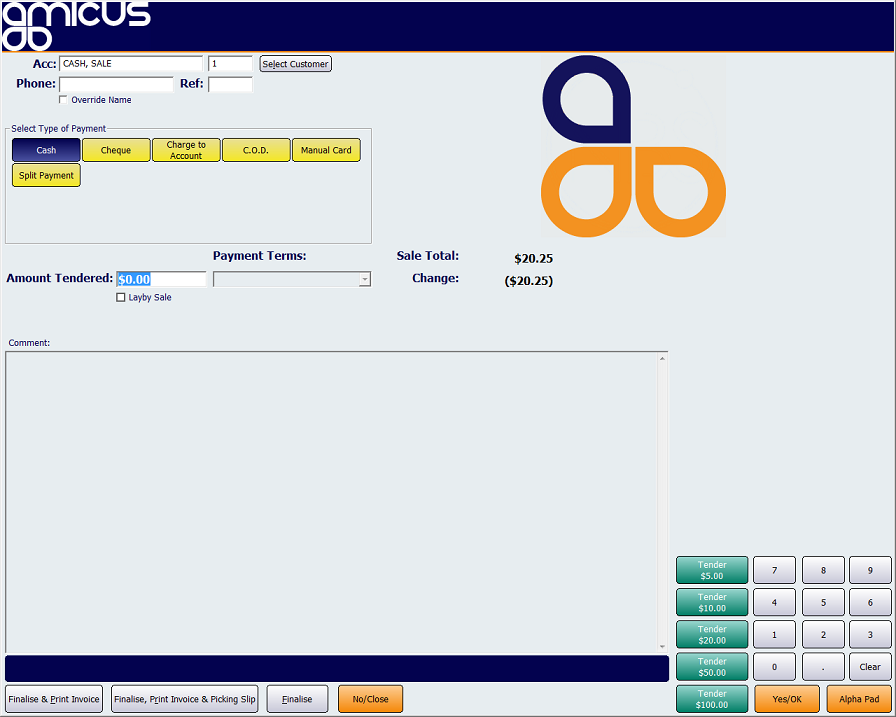
Figure : Finalising a sale
The Payment Type area is where you specify how the customer will be paying for their purchase. Regardless of the payment type selected, you may at any time, when the Finalise Sale screen is displayed, re-select your customer, if required.
The available payment types include:
-
Cash;
-
Cheque;
-
Charge to Account;
-
Cash on Delivery (Account);
-
Manual Card;
-
Split Payment.
Depending on the payment type selected, NBS Amicus will prompt you for various pieces of additional information to finalise the sales process.
When Cash is selected, NBS Amicus treats the sale as a cash sale. The customer details are optional only, and NBS Amicus will enable the Amount Tendered field and calculate the Change accordingly. The maximum amount of change allowed is limited to the preferences set by your company.
If Cheque payment is selected, NBS Amicus treats the sale as a cash sale with optional additional information. If you database security has been configured to request a cheque number, NBS Amicus will prompt you to enter the customer s cheque number in the Cheque No. field. Selection of a customer and data entry in the Cheque No. field is optional. However it does allow for extended reporting of customer receipts. NBS Amicus assumes the customer is tendering the CORRECT amount and DOES NOT enable the Amount Tendered field, or calculate Change under this payment type.
If the customer chooses to pay with Manual Card, NBS Amicus provides a field for you to enter an Authorisation Code as supplied by your credit card facility provider. As with cheque payments, entry of information in the Authorisation Code and the selection of a customer are optional. It is also assumed that the customer is paying the correct amount only so the Amount Tendered field and Change field are NOT enabled.
Charge to Account is the normal option to select for credit sales. This option REQUIRES the selection of a Customer account. Where only limited customer information exists, the system will provide an on-screen warning to the operator. As this is a credit sale, NBS Amicus will charge the amount owing directly to the selected customer s account. The operator will NOT be prompted to enter Amount Tendered and the system will not calculate any Change due. You will be prompted to choose the Payment Terms to print on the bottom of the sales invoice. If no payment terms are selected, then the default payment terms will be printed on the sales invoice.
Where the customer chooses the Cash on Delivery (Account) payment type, NBS Amicus treats this as a credit sale and REQUIRES a Customer to be selected. Where only limited customer information exists, NBS Amicus will provide an on-screen warning to the operator. As this is a credit sale, NBS Amicus will charge the amount owing directly to the selected customer s account. The operator will NOT be prompted to enter Amount Tendered and the system will not calculate any Change due.
Where the customer wishes to pay using more than one method, for example, with cash and a cheque, then select the Split Payment option. This will open the Enter Split Payment screen.
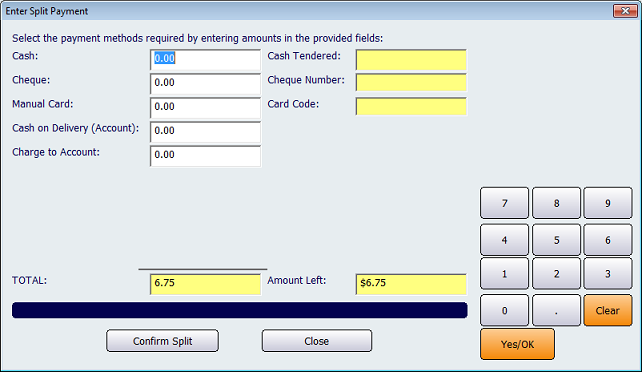
Figure : Use the Split Payment screen when a customer pays using more than one method
You will be asked to enter the amount for each method the customer is using. Depending on the payment type, you may need to enter additional information, for example, a Cheque Number for a cheque, or a Card Code for a card payment. Once all the various methods of payment have been entered, select Confirm Split to save the payment details and to return to the Finalise Sale screen.
To be returned to the sales screen at any time, for example, to enter more items, click Close. This will clear any information entered in the Finalise Sale screen.
To finalise a sale, you have three options:
-
Finalise & Print Invoice;
-
Finalise, Print Invoice & Picking Slip; or
-
Finalise.
Finalise & Print Invoice will print a sales invoice to this registers default printer for all sales, except for cash and lay-by sales which will print an invoice to a strip printer if one is attached to this register.
The Finalise, Print Invoice & Picking Slip option will print the same documentation as the Finalise & Print Invoice option, but it will also include an additional picking slip. This picking slip will be printed to the nominated A4 printer for this register.
By clicking Finalise you can complete and save this sale without printing any documents. Note that although no documentation is printed when you select this option, you may reprint the sales invoice at a later stage using the Reprint Invoice option.
Once a sale has been finalised you will be returned to your preferred sales screen. The amount tendered, change and total charge for the sale just completed will remain in the respective fields for the preferred time before disappearing.