Fuel Links
From Amicus


| Amicus | |
| Fuel Links | |
| See Also Submit feedback on this topic | |
| Modules & Other Devices > Modules > Fuel Module > Fuel Configuration > Fuel Links |
Glossary Item Box
The Fuel Links configuration page allows you to set different fuel types to linking product information, such as departments, product groups, adjustments & stocktake. This links products stored in the tanks to the pump in which the wet stock is delivered. To get to the Fuel Configuration screen click on Fuel Module from the Toolbar menu and then click on Fuel Configuration.
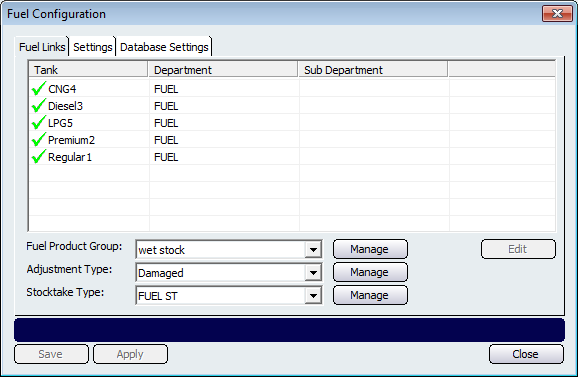
Figure : Fuel Links configuration
Table – lists all the wet stock and the departments and sub-departments that they belong to.
Edit – to edit one of the Tank items, click on the item and then select the Edit button. This will then bring up a screen where you can edit their department and sub-department information.
Fuel Product Group – links the wet stock to a product group. To add a Fuel Product Group click on the Manage button. This will take you to the Add/Edit Product Group screen.
Adjustment Type – links the wet stock to an adjustment type. To do this click on the Manage button to the right of the Adjustment type field. This will then open up the Stock Adjustment Type screen.
Stocktake Type –links the product to a stocktake type. To do this click on the Manage button to the right of the Stocktake Type dropdown box. This will then open up the Add/Edit Stocktake Type screen.
Other buttons that perform actions on the Fuel Links tab includes, Save, Apply, and Close.
See Also
Fuel ManualSales Screen (Touch Screen Mode)
Settings
Database Settings
Amicus Administration User Guide
Add and Edit Products