Multibuy Price Change
From Amicus


| Amicus | |
| Multibuy Price Change | |
| See Also Submit feedback on this topic | |
| Key Areas > Stock Control And Products > Pricing > Multibuy Price Change |
Glossary Item Box
The Multibuy Price Change dialogue allows price changes to multiple products with promotional products under conditional arrangements. Products can be sold with conditions attached which in turn allow for the sale of promotional goods or other items in a product line. The Multibuy Price Change screen can be opened by selecting Products from the Amicus Toolbar, click on Pricing and then select Quick Multibuy Entry. You can also access the Multibuy Price Change screen by clicking on the Multibuy button from the Promo Pricing screen. Doing either of these options will open up the following screen.
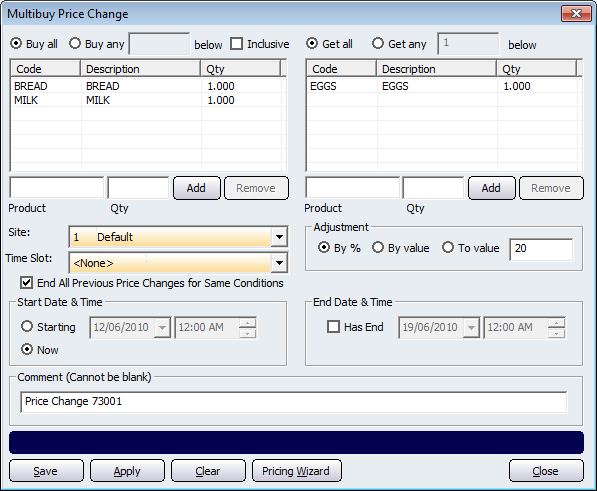
Figure : Multibuy Price Change Dialogue
This screen allows you to configure what product(s) need to be purchased by the customer before the promotional price change will take effect. The Multibuy Price Change screen is split into two sections: Buy products and Get products.
Buy Products
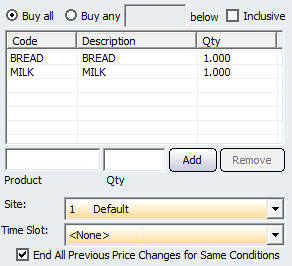
Figure : Buy Section of the Multibuy Price Change dialogue
This section of the screen allows you to configure the purchasing conditions that must be met for the price change to take effect.
Selecting the Buy All button will require your customers to purchase all of the products listed in the Buy section of the screen before the promotional price change will take effect. Selecting the Buy Any button will allow you can configure how many of the listed products the customer has to purchase before the promotional price change will take effect.
To add a product to the Buy section, enter the product code into the Product field and press either Tab or Enter. Enter the quantity required to be purchased in the Qty field. Once you have entered the Product and its Quantity click on the Add button to add it to the Buy table. To remove a product from the buy table, select the product from the list and click on the Remove button.
The Site dropdown list allows you to select which site the product must be purchased from. If a product is sold at a site other than the one specified on this screen then it will not be counted towards the multibuy promotion.
The Time Slot dropdown list allows you to set the time periods at which the product(s) must be purchased. If a product is purchased within the specified time slot then it will count towards the multibuy conditions. More information regarding time slots can be found on theAdd/Edit Time Slots page.
Tick the End All Previous Price Changes for Same Conditions if you want the multibuy rule to supersede any previous price rules.
Get Products
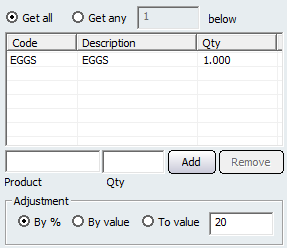
Figure : Get Section of Multibuy Price Change dialogue
This section of the Multibuy Price Change screen allows you to select the Products whose price will be adjusted if the Buy conditions are met.
Selecting the Get All button will mean that all of the products in the table will have their prices adjusted when they are purchased by the customer. The Get Any button allows you to limit the amount of products that can be purchased before the price adjustment will stop.
To add a product to the Get section, enter the product code into the Product field and press either Tab or Enter. Enter the quantity required to be purchased in the Qty field. Once you have entered the Product and its Quantity click on the Add button to add it to the Get table. To remove a product from the buy table, select the product from the list and click on the Remove button.
The Adjustment section allows you to configure how much the products price will be adjusted by. Select the By% box to adjust the price of the product by a percentage amount. Selecting the By Value box allows you to adjust the price based on the value you enter (e.g Placing 1 in the adjustment field will discount the product by $1). Select the To Value box to adjust the products price to the price that you enter in the adjustment field (e.g. Putting $2.50 in the adjustment field will change the products price to $2.50).
Date and Time Settings
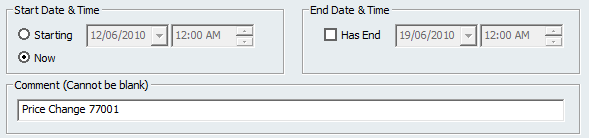
The Start Date & Time section allows you to configure the time at which the multibuy price change will take effect. By default the Now box will be selected meaning that the multibuy price change will take effect immediately. However, if you want to specify the time at which the price rule will take effect then select the Starting box and configure the date and time at which the multibuy price rule will take effect.
The End Date & Time section is used if you want to set a time at which the price rule will no longer be in effect. Tick the Has End tick box and then configure the date and time at which the rule will cease.
The Comment field is automatically populated with a comment generated by Amicus. To enter your own comment click on the Comment field and add a comment that describes the price rule change.
Buttons that perform actions on the Multibuy Price Change screen includes: Save, Apply, Clear, Pricing Wizard - Clicking this will bring up the Pricing Wizard dialogue, and $$Close:Close.