Enter the Products
From Amicus


| Amicus | |
| Enter the Products | |
| See Also Submit feedback on this topic | |
| Transactions > How to Make a Sale Using the Fast Sales Screen > Enter the Products |
Glossary Item Box
To enter products onto the Enter Sale screen you must enter the bar code or the product code of the product into the Bar Code field. NBS Amicus allows several methods of entering this information.
-
You can either use a bar code scanner and scan the product's bar code or product code; or
-
You can manually type the products bar code or product code; or
-
In the Bar Code field, you can type the beginning of a product or bar code, followed by an asterisk (*) and a window will open up containing all matching products. You can then select the product you want from this list; or
-
You can search for the product by entering part of its description into the Enter partial description& field and clicking Find or pressing Enter or Tab.
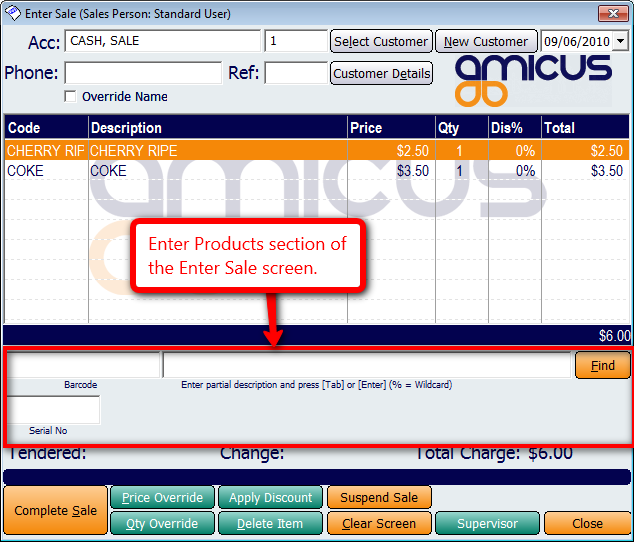
Figure : Products Section of the Enter Sale screen
Some products may require you to enter or manually edit some details about the product, such as the Description, Quantity or Price. You will be prompted when this is necessary. An example of when this occurs is when you enter a product that has not been assigned a price. An enter price dialogue will pop up allowing you to enter the price for the product. In these situations, manually enter a new Description for the product, the number of units of the product being sold in the Quantity field and the unit Price for each product.
Enter all the products for this sale in a similar way. As you enter each item, it will appear in the sale list.
If you enter a product with the same type and price of a product which has been previously entered, NBS Amicus will increase the quantity of the product that is already in the sale.
If you enter a product of the same type but you wish to sell this product at a different price than one previously entered, the new product will be entered on a new, separate line.