Purchase Order - Enter the Products
From Amicus


| Amicus | |
| Purchase Order - Enter the Products | |
| See Also Submit feedback on this topic | |
| Key Areas > Suppliers > Common Tasks > Creating a Purchase Order > Purchase Order - Enter the Products |
Glossary Item Box
Enter the bar code or the product code of the product in the Bar Code or Product Code field. NBS Amicus allows several methods of entering this information.
-
You can either use a bar code scanner and scan the products barcode or product code; or
-
You can manually type the products bar code or product code; or
-
In the Bar Code or Product Code field, you can type the beginning of a product or bar code, followed by an asterisk (*) and a window will open up containing all matching products. You can then select the product you want from this list; or
-
You can also search for the product by entering a partial description in the Enter partial description & field and clicking Find Order Item or by pressing Enter or Tab.
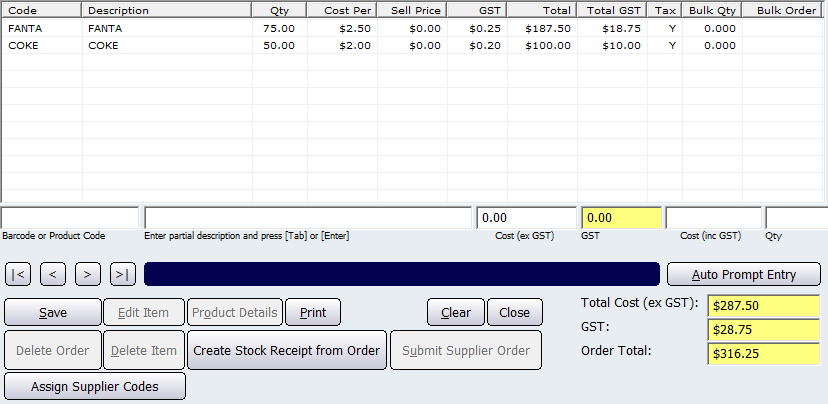
Figure : Add Product section of the Add/Edit Supplier Order screen
Once you have selected the product you wish to buy, you will be prompted to edit the unit cost excluding GST for this product. This will be displayed in the Cost (ex GST) field. By default, NBS Amicus will display the current unit cost for this item. If the cost is correct, press either Enter or Tab to accept this cost. Alternatively you may edit this cost by simply typing the new unit cost and then pressing either Enter or Tab to save your typed details.
NBS Amicus will automatically calculate the GST amount per unit. If this is correct then press either Enter or Tab to accept this amount. Alternatively you may edit this cost by simply typing the new unit GST and then pressing either Enter or Tab to save your typed details. Note that NBS Amicus calculates the GST as one eleventh (1/11) of the cost including GST to four (4) decimal places, so occasionally the rounding of the GST amount may vary by one cent from the amount displayed on supplier documentation.
If you wish the system to calculate the cost excluding GST and the GST amount per unit from the cost including GST, enter the cost including GST into the Cost (inc GST) field. Press either Enter or Tab to save this amount.
You will then be prompted to enter the quantity, or number of units, of the product that you wish to buy. Enter this by typing the appropriate amount into the Qty field and then pressing either Enter or Tab.
The Edit Item function allows you to manually edit some details about the product, such as the quantity or cost. Depending upon the options stored for the individual product, enter the number of units of the product being sold and the unit cost for each product.
The Product Details button allows you to open the master record for the product and to change the details as necessary. Any changes made to the master product record will update any associated records in the NBS Amicus system.
Enter all the products for this purchase order in a similar way. As you enter each item, it will appear in the purchase list.
If you enter a product of the same type and price of a product that you have already entered, NBS Amicus will increase the quantity of the product that is already in the purchase order.
If you enter a product of the same type but you wish to buy this product at a different price than one previously entered, the new product will be entered on a new, separate line.
To delete an item altogether, select the relevant line from the purchase list and click Delete Item.
To clear or cancel a purchase order, select the Clear option to delete all information currently entered for this purchase order.
The running totals of the purchase order are displayed in the Total Cost (ex GST), GST and Order Total fields.
Once all items have been entered into the purchase order, and all costs and quantities are correct, the next step is to Save the purchase order and to Print it out to send to your supplier.
The Delete Order button will delete the entire order of products that have not yet been received.