Creating Stock Receipts from Orders
From Amicus


| Amicus | |
| Creating Stock Receipts from Orders | |
| See Also Submit feedback on this topic | |
| Key Areas > Suppliers > Common Tasks > Creating a Purchase Order > Creating Stock Receipts from Orders |
Glossary Item Box
If this purchase order is actually being created from a suppliers delivery notice, or the products have already been received, then ensure that the Date Received field is completed.
Click the Create Stock Receipt from Order button on the Add/Edit Supplier Order screen to open the following screen.
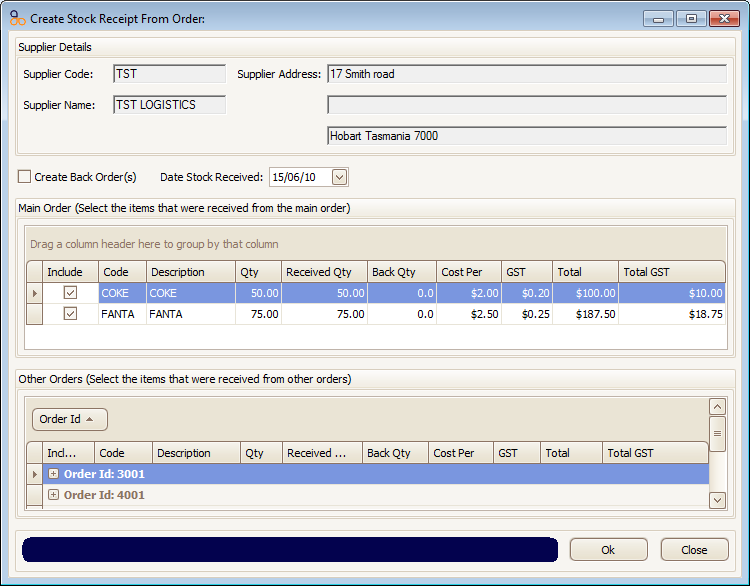
Figure : Creating stock receipts from orders
Ensure that Date Stock Received is correct so that the product records are accurately updated. If required, enter the correct date the goods were received into stock.
Select the products that have been received and ensure that the associated tick boxes are checked to indicate that the goods have been received. Enter the actual quantity received for each individual product in the Quantity Received field. NBS Amicus will display any variance between the quantity ordered and the quantity received in the items received area of the screen. NBS Amicus will also amend the amount due to reflect the actual quantity received.
Repeat this process until all the items in this supplier order that have already been received have been updated.
Click Ok to save the record and return back to the Add/Edit Supplier Order screen.
Click Close to exit the Create Stock Receipt from Order screen.