Editing Purchase Orders
From Amicus


| Amicus | |
| Editing Purchase Orders | |
| See Also Submit feedback on this topic | |
| Key Areas > Suppliers > Common Tasks > Editing Purchase Orders |
Glossary Item Box
The Orders tab on the Add/Edit Suppliers screen allows you to edit an existing purchase order to a supplier. This gives you greater flexibility and control over the orders that you make. To access the Order tab click on Suppliers from the Amicus Toolbar, click on Add/Edit Suppliers and then navigate you way to the Orders tab. Doing this will open up the following screen.
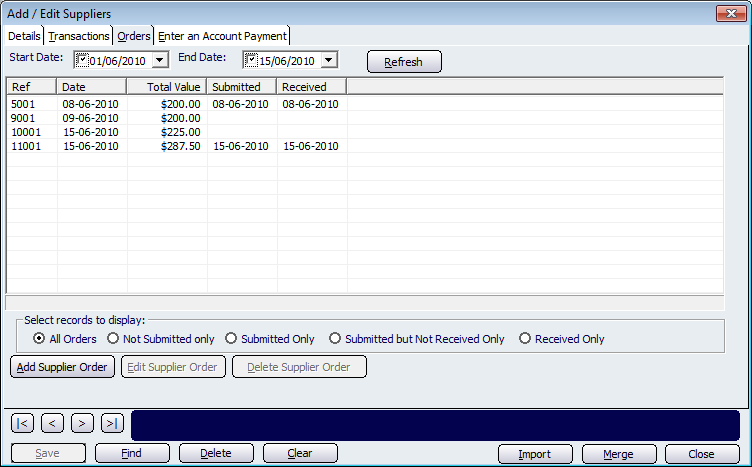
Figure : Editing an existing purchase order
Select the purchase order that you would like to edit and click on the Edit Supplier Order button. The purchase order you have selected to edit will be returned to the Add/Edit Supplier Order screen. To modify the order, highlight the item you wish to edit and select the Edit Item button, or alternatively, double click the item (see the following screen). Information shown on that screen includes Product Sales History as well as various stock levels Min. Stock Level, Preferred Stock Level and Current Stock Level - that in turn produce a Suggested Order figure. Note: The calculation of the Suggested Order figure requires that the Min. Stock Level and the Preferred Stock Level be set and also that the Current Stock Level is correct. Once you have made your changes, select Save. The amended details will now be displayed on the Add/Edit Supplier Order screen.
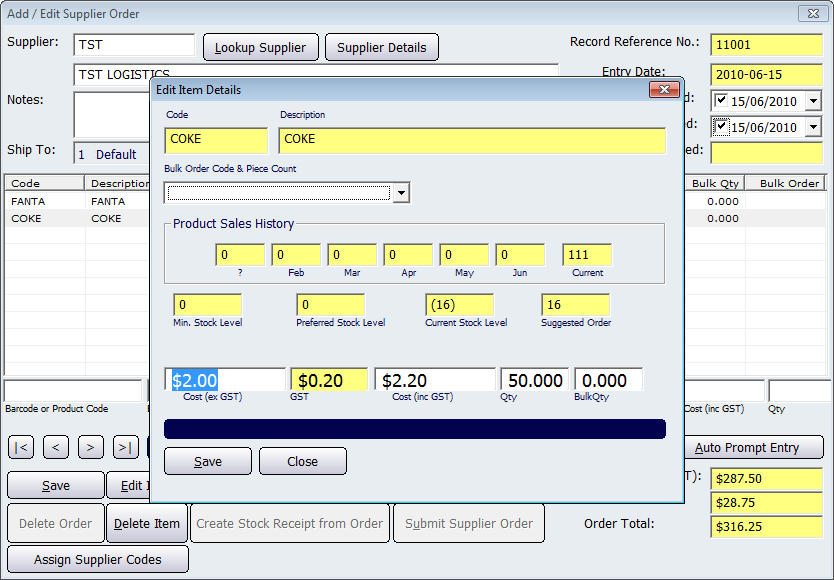
Figure : Details of individual items making up the order are shown on the Edit Item Details screen