Creating a Purchase Order
From Amicus


| Amicus | |
| Creating a Purchase Order | |
| See Also Submit feedback on this topic | |
| Key Areas > Suppliers > Common Tasks > Creating a Purchase Order |
Glossary Item Box
The steps involved in using the Add / Edit Supplier Order screen (shown below) are essentially the same as the Enter Invoice Sale screen (refer to Make a Sale Using the Invoicing Screen), except you are purchasing items not selling them. To access this screen, select Suppliers on the Main Menu followed by Create & Edit Purchase Order. Alternatively select Suppliers on the Toolbar and then Add Supplier Order.
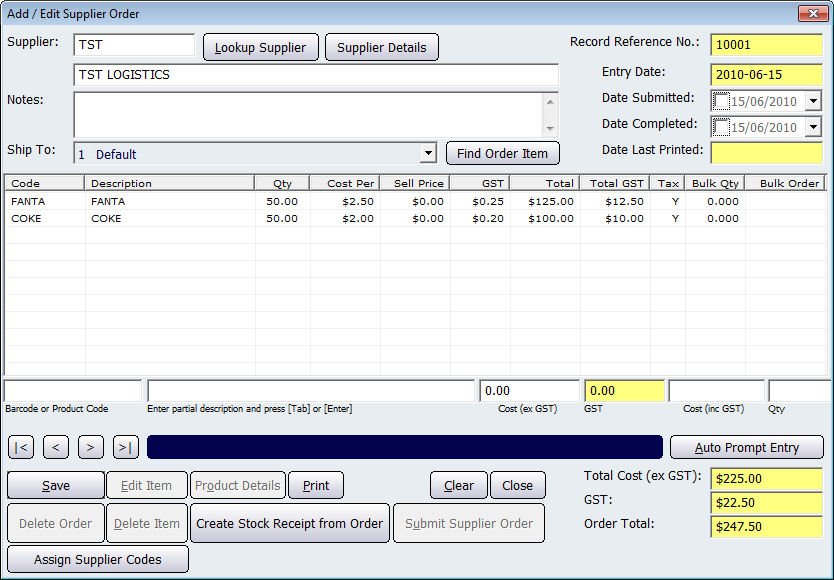
Figure : Creating or editing a purchase order
Depending on your individual security settings, you may be asked to log in. Enter your Key Code or Password to proceed. If the key code or password does not let you enter the screen, you will need to have your System Administrator change your personal security settings.
Alternatively, you may logon using your Employee Card by passing your card over the Smart Card reader.
Record controls
Buttons to perform actions on the displayed dialogue includes; < and >, allow you to respectively scroll forwards and backwards through the items on the screen one record at a time. To quickly find the first or last items record, click either the |< or >| key respectively. These buttons appear at the bottom of all Add/Edit dialog tabs providing access to all products, customers, suppliers, etc. ',event)">Navigational Arrows, Save, Delete, Clear, Close Edit Item, Product Details, Print, Create Stock Receipt from Order, Submit Supplier Order, Assign Supplier Codes and Auto Prompt',event)">Auto Prompt Entry.