Price Change Management
From Amicus


| Amicus | |
| Price Change Management | |
| See Also Submit feedback on this topic | |
| Key Areas > Stock Control And Products > Pricing > Price Change Management |
Glossary Item Box
All promotional pricing can be viewed and managed from this dialog. Records can be added, edited and removed in this dialog. Pricing records are displayed in a list that can be filtered by start or end date. The Price Change Management dialog can be opened by selecting the Manage button from the Promo Pricing dialog. Alternatively select Products, Pricing then Price Change management from the Amicus Toolbar.
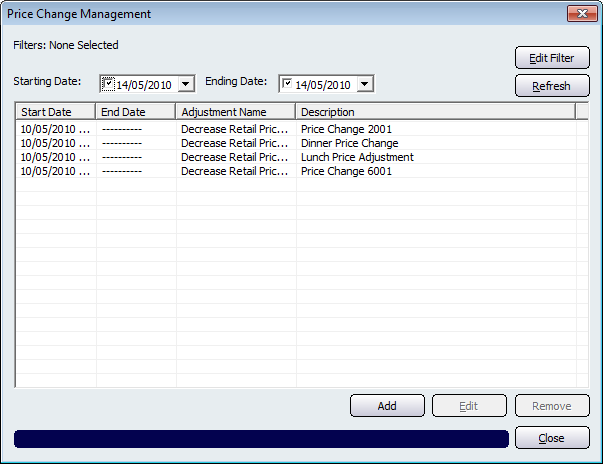
Figure : Price Change Management dialog
The fields that are included on this screen are: Starting Date, Ending Date, Adjustment Type, a Description of the Price Change (e.g. Dinner Price change), and Refresh.
Clicking on the Edit Filter button will bring up the Price Change Management Filters screen:
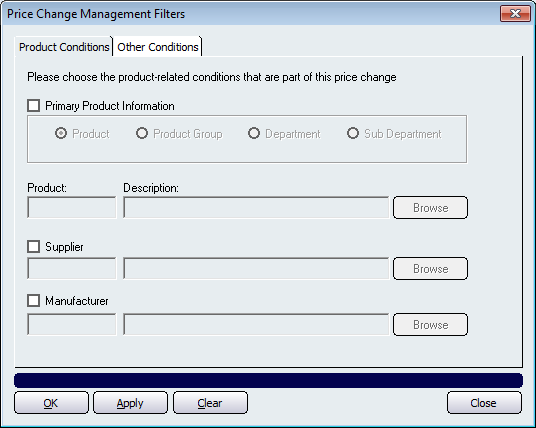
This screen allows you to filter the Price Management Screen to only show records that match what you select from this screen. You can filter based on the Primary Product Information, Suppliers, and Manufacturers.
Click on the Other Conditions tab if you would like to select from more filters. Doing this will open up the following screen.
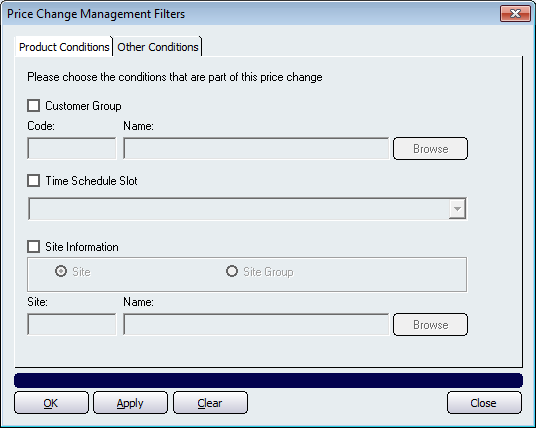
The filter(s) availible to you are Customer Group, Time Schedule Slot, and Site Information. Click on the Apply button to apply the filters that have been chosen. Click on the Ok button to select the filters and return back to the Price Management screen. The Clear button will remove any filters that you have chosen on the selected screen.
To close the Price Change Management Filters page, click on the Close button.
Other buttons availible on the Price Change Management screen includes: Add -Displays the Pricing Wizard. Refer to Pricing Wizard for further information. Edit - Displays the Price Change Summary dialog. Remove and Close.