Fast Sales Using a Touch Screen
From Amicus


| Amicus | |
| Fast Sales Using a Touch Screen | |
| See Also Submit feedback on this topic | |
| Transactions > Fast Sales Using a Touch Screen |
Glossary Item Box
In order for the touch screen to appear when the Fast Sales method of NBS Amicus is being used (as shown below), the touch screen settings of NBS Amicus for an individual register must be activated. To find out how to do that, refer to the Touch Screen.
Relevant touch screen buttons, such as Cash, Cheque, Card, COD, etc., are displayed at the bottom of the screen. The appearance of these individual buttons is controlled by settings that are maintained on the Sales tab for all registers. To find out how to turn on/off the display of these buttons refer to the Preferences for All Tills Sales Tab.
Adding Products to the Sales Screen
To enter products onto the Enter Sale screen you must enter the bar code or the product code of the product into the Bar Code field. NBS Amicus allows several methods of entering this information.
-
You can either use a bar code scanner and scan the product's bar code or product code; or
-
You can manually type the products bar code or product code; or
-
In the Bar Code field, you can type the beginning of a product or bar code, followed by an asterisk (*) and a window will open up containing all matching products. You can then select the product you want from this list; or
-
You can also search for the product by entering part of its description into the Enter partial description field and pressing Find or pressing Enter or Tab.
The image below demonstrates where the product information in entered on the sales screen.
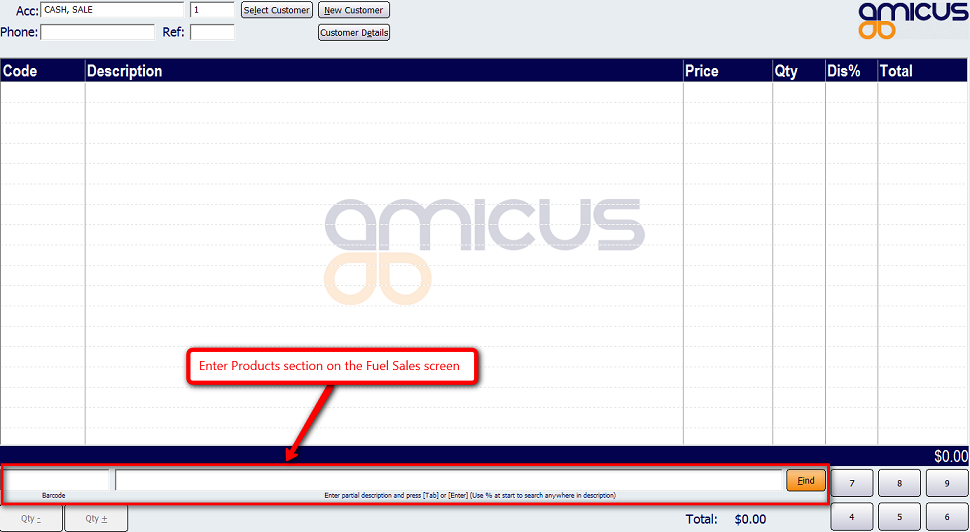
Figure : Section where products can be entered on the Sales screen
To make the sales process fast and easy, products and actions that are commonly used during the sale process can be set up in the product pad area of the touch screen. More information regarding the product pad and how to configure it can be found on the Managing Product Pad Pages Page. The screen shot below shows the product pad with buttons linking to Newspaper, Hot Food, or Hot Drinks products.
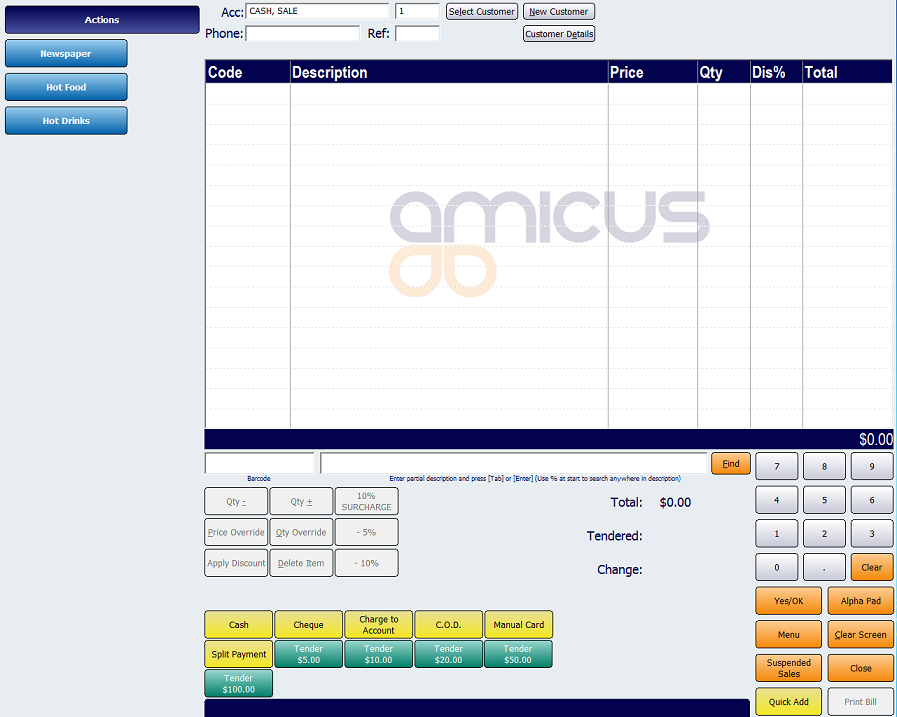
Figure : A touch screen makes it both easy and fast for staff members to process sales
Clicking on the Newspaper button on the screen above will bring up a screen displaying all of the products that fall under the newspaper category.
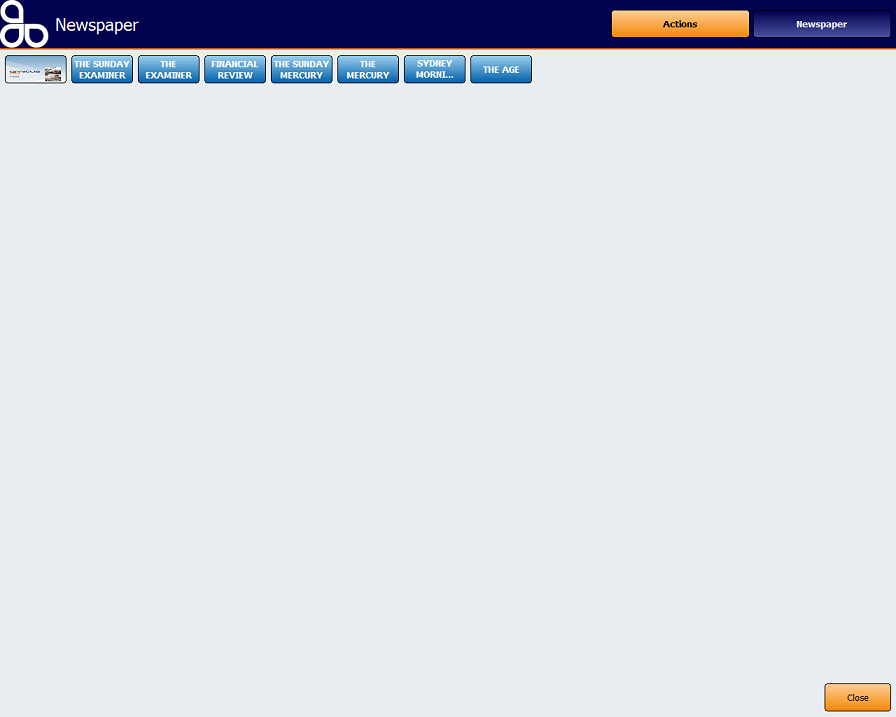
Figure : An example of a touch button for the products within the Newspaper department
Processing the sale of a product-via its associated touch button in the product bar area of the touch screen-is a straightforward task. Simply touch the button and the details of the product will then be shown in the body of the screen under the headings of Code, Description, Price, Quantity, $$Dis%:discount and Total. In this example The Sunday Examiner newspaper button was pressed which brings up the following screen.
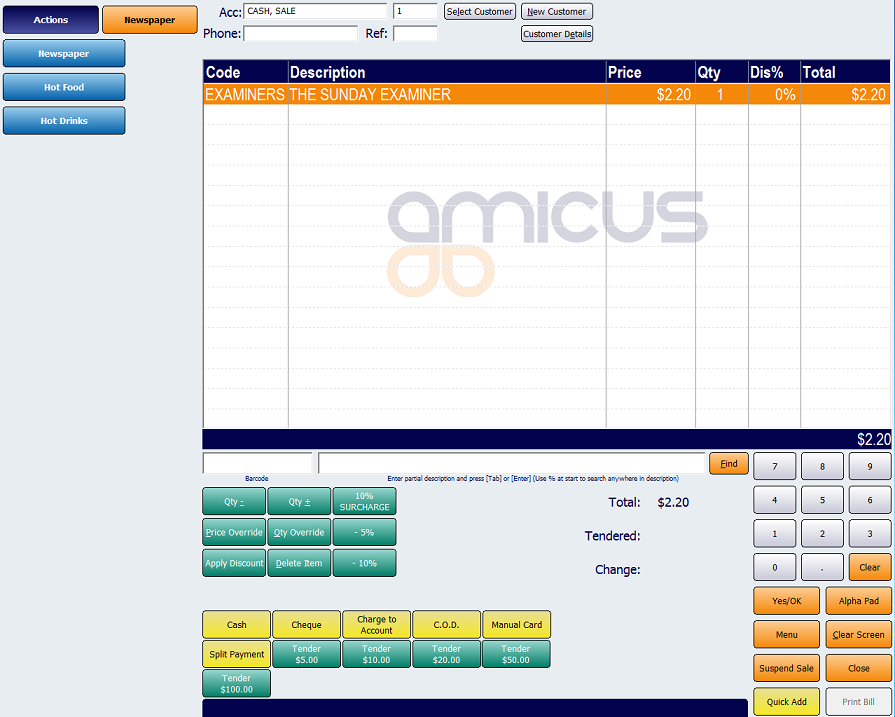
Click on the Yes/OK button to bring up the finalise sale screen.
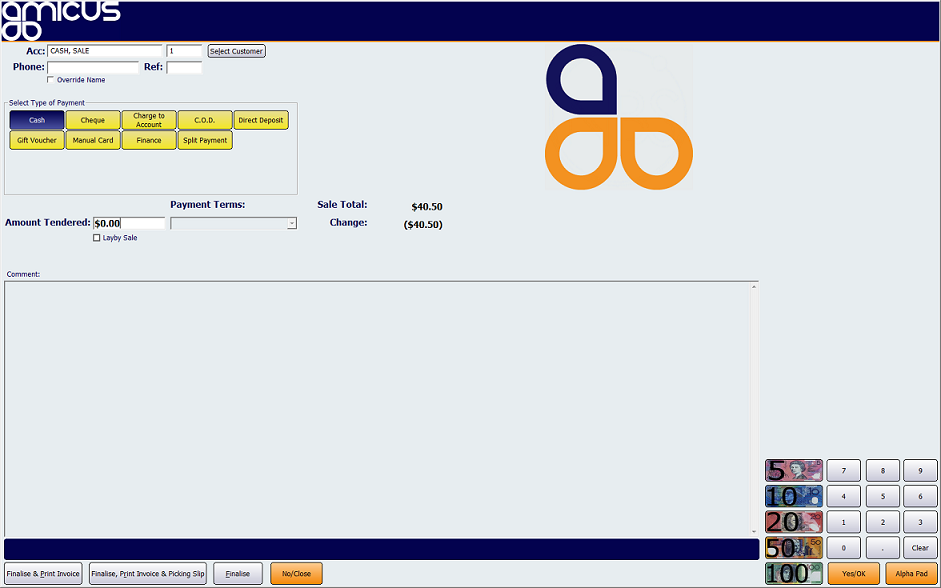
To read through instructions for finalising a sale, you are referred to the following sections: Finalising a Sale and Finalising a Sale Using a Touch Screen.
See Also
Amicus Administration User GuideManaging Product Pad Pages
Amicus Standard User Guide
Finalising a Sale Invoice Screen
Finalising a Sale Using a Touch Screen - Invoice