Markup Export
From WriteMonkey
Markup Export
Home | Categories
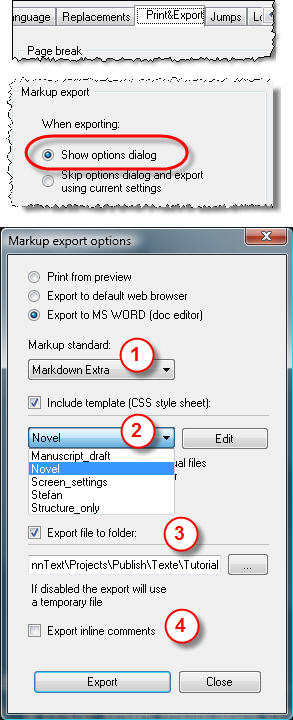
When you export your markup-formatted file:
- Writemonkey will convert your markup to HTML tags
- then apply CSS styles according to the chosen template
- and export to a saved (optional) output destination
On the Print&Export Tab:
- Enable 'Show options dialog'
- otherwise last used settings will be applied
Press CTRL+SHIFT+E to call up the export dialog:
To export only part of your text:
- Make a selection prior to calling up the dialog
- If nothing is selected the whole document will be exported
Select the recipient of your export (MS Word for instance), then
- pick the correct Markdown standard from the dropdown
- it must correspond to the syntax used in your text
- for details see Markup Formatting
- Include template (CSS sheet)
- this may greatly influence the rendered format
- for details see CSS Template
- Export file to folder (optional)
- Export inline comments
- If kept, they will have a yellow background by default
- change this by specifying/editing a template in step 2
Copy+Paste Markup
As an alternative to a full-fledged markup export, you may
- select parts of your text
- then press CTRL+SHIFT+F to copy your selection as formatted text
This will (instantly) give you the same result as exporting to your web browser via CTRL+SHIFT+E, then doing a 'Select All' and 'Copy' in your web browser.
The settings used also come from the dialog 'Markup export options', only that you won't get to see them, they operate in the background. Your last used settings will be applied.
The program into which you paste:
- must support rich text format
- must keep the source formatting (the default setting in Word):
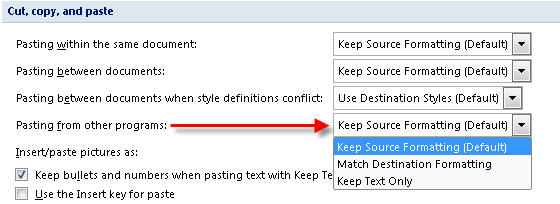
If your pasted text is not rendered, check Paste-options of Word or whatever editor you use.
CSS Template
This is where you - the user - have the most control over your formatting.
- By including a CSS style sheet (template file) you provide visual styles for HTML elements.
- You can edit your templates right on spot, from the export dialog:
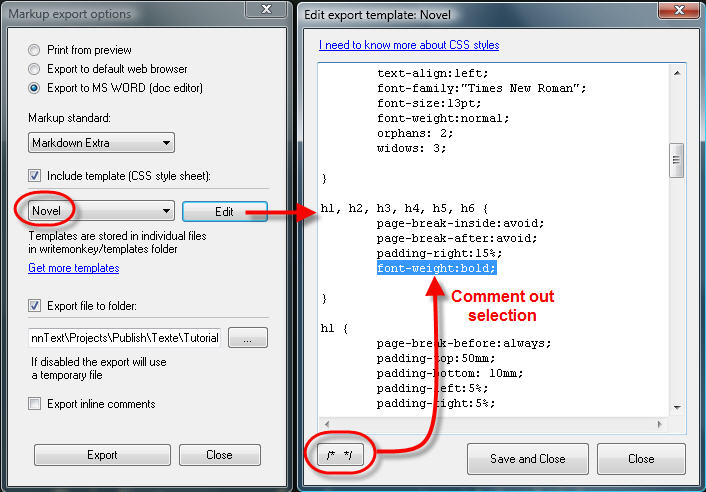
Instead of deleting unwanted sections, comment them out as shown above
Enter additional rules or change existing ones
Templates offer the possibility to have different rules for the same element:
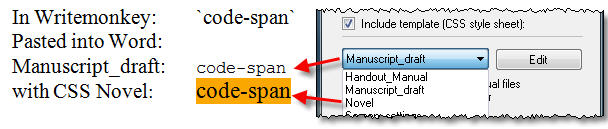
The CSS standard is widely accepted and not hard to learn. See en.wikipedia.org/wiki/CSS  for details
Template files
- are fully portable (users can exchange them)
- are stored in WriteMonkey's pogram directory in the subfolder 'templates'
Categories: What else? | Writing
Related topics: Headings | Markup Formatting | Print+Export
WriteMonkey version 2.4.0.6 | This helpfile last updated on Aug 29, 2012 --- Stefan Müller