Search Customers
From Amicus


| Amicus | |
| Search Customers | |
| See Also Submit feedback on this topic | |
| Key Areas > Customers > Search > Search Customers |
Glossary Item Box
To access the Search Customers window (shown below), click on Customers from the Main Menu and then click on Search Customers. Alternatively, click on Customer from the Amicus Toolbar and then click on Customer Listing. This function allows you to quickly search any of the contact fields within the Customer database.
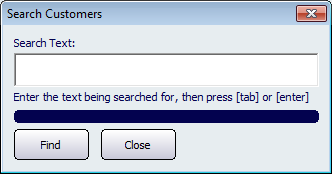
Figure : The Search Customers function
To use this function, type the information that you wish to look up, such as a customers Surname, Company or Customer Number, and then click Find to search the Customer database.
If NBS Amicus can find any information that matches the information you entered, NBS Amicus will either open the Add/Edit Customer screen showing the exact match for your search, or the Select a Customer dialogue if there is more than one match to your search. If you leave the Search Text field blank and press Find it will open up the Select a Customer screen with a list of all the customers that exist in your customer database.
Another screen that will also list all of your customers is the Customer Listing page.