Reversing A Sale
From Amicus


| Amicus | |
| Reversing A Sale | |
| See Also Submit feedback on this topic | |
| Key Areas > Sales > Common Tasks > Reversing a Sale |
Glossary Item Box
Most businesses today require the ability to reverse sales for a variety of reasons. NBS Amicus allows you to reverse any of the sales that has been made whilst using the software. Amicus also gives you the ability to reverse specific items from a sale.
To reverse a sale click on Credits & Reversals from the Transactions menu, followed by the Reverse Sale option. Alternatively, click Sales from the Amicus Toolbar followed by the Reverse Sale option.
Doing either of these options will open up the Reverse Sale screen.
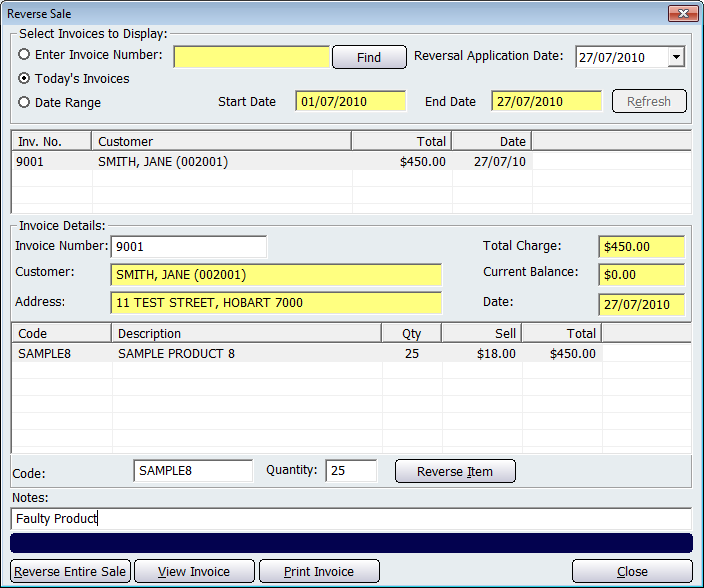
Figure : Reversing a sale
The top section of the Reverse Sale screen allows you to configure which invoices are displayed in the table. There are three ways in which you can determine which invoices are displayed on the screen. One way is to select the Enter Invoice Number box and enter the invoice number into the field and then press the Find button. If the invoice exists it will be displayed on the screen. Clicking on the Today's Invoices button will display a list of invoices that were created Today. Selecting the Date Range box will enable you to enter a Start Date and an End Date. Any invoices that fall within this date range will be displayed on the screen.
Reverse Entire Sale
To reverse an entire sale click on the Invoice that is to be reversed, this should populate the screen with the details of the customer and sale details.
Enter a comment about the reversal in the Notes field. If this is empty no comment will be recorded against the reversal. The Note field can be displayed or hidden in the global settings by clicking File from the Amicus Toolbar, click on Preferences then All Registers, navigate to the Sales tab and check/uncheck the option Hide Reverse Sales Note.
In the Reversal Application Date field, enter the date that you wish the reversal to be applied. By default this field will show today's date.
Click on the Reverse Entire Sale button to start the process of reversing the sale. Clicking this button will bring up the following screen.
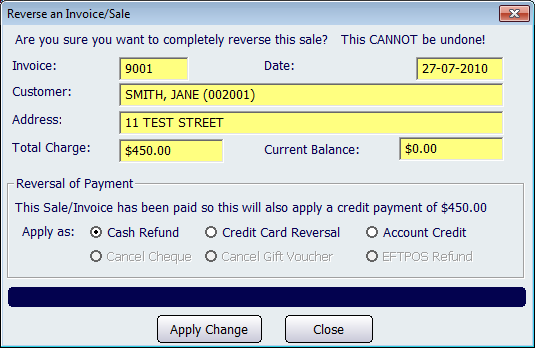
Figure : Reversing the entire sale
Select the type of payment that the customer will receive. The reverse payment options include: Cash Refund, Credit Card Reversal, Cancel Cheque or Cancel Gift Voucher.
Once the payment type has been selected you will be prompted to confirm whether you wish to Apply Change. If you do not wish to proceed, select the Close option and you will be returned to the Reverse Sale screen. Note that once this change has been applied, it is permanent and cannot be undone.
Reverse Items
If you wish to only reverse an individual item, select the sales invoice that is going to have an item reversed, and from the list of all the products sold on that invoice, select the individual Product that you wish to return. In the Quantity field, adjust the quantity of the product to reflect the number of items being returned. For example, if the original sales invoice was showing four (4) items of a product and the customer was returning three (3), then you would adjust the Quantity field to one (1). Then click Reverse Item. Doing this will bring up the Reverse a Quantity of an Item screen.
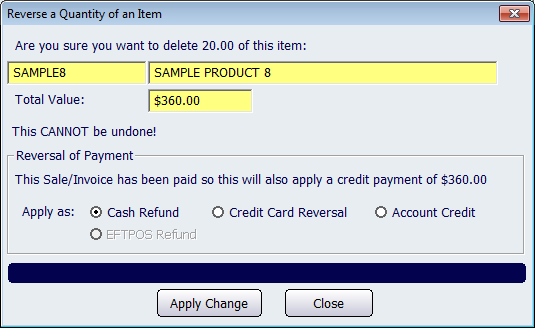
Figure : Reversing only an individual item
Select the reversal payment type that will be returned to the customer. The payment types that can be selected are: Cash Refund, Credit Card Reversal, Account Credit, and EFTPOS Refund.
When this option is selected you will be prompted to confirm whether you wish to Apply Change. If you do not wish to proceed, select the Close option and you will be returned to the Reverse Sale screen. Note that once this change has been applied, it is permanent and cannot be undone.
Once you have reversed the item, a Print Payment Receipt dialog will be displayed, you can then choose whether you would like to print a payment receipt. You will then be returned back to the Reverse Sale screen that will show the amended Product Qty based on how many items were reversed.
Clicking on the View Invoice button on the Reverse Sale screen will open up a Customer Invoice report that displays the details of the sale. If the sale has had any items reversed then the Quantity, Unit Price and Extended Price within the customer invoice report will be in brackets (which means the quantity has been reduced).
To print an invoice, select the invoice from the list and click on the Print Invoice button. This will then print out a Customer Invoice report for the selected invoice.
Clicking on the Close button will exit the Reverse Sale screen.