Reversing A Customer Payment
From Amicus


| Amicus | |
| Reversing A Customer Payment | |
| See Also Submit feedback on this topic | |
Glossary Item Box
As with many businesses, a payment that was made by a customer may need to be reversed. NBS Amicus provides the functionality that allows you to reverse payments that have been made by your customers.
To access the Reverse Payment screen click on Credits & Reversals from the Transactions menu and then click on Reverse Payment. Alternatively, click on Sales from the Amicus Toolbar and then click on Reverse Payment. Doing either of these options will open up the following screen.
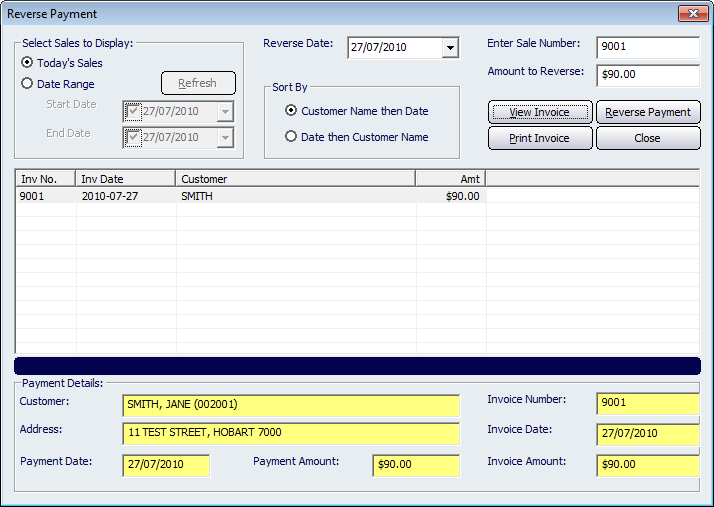
Figure : Reversing a customer payment
If you know the sale number, which is printed on the invoice from NBS Amicus, enter the sale number in the Enter Sale Number field and press Tab. The screen should automatically populate with the details of the invoice. If the invoice you enter does not exist then a message will appear at the bottom of the screen informing you that the entered invoice does not exist.
If you do not know the sale number but you know the date, or the date range for when the sale was made, click the Date Range radio button and enter a Start Date and End Date and then click the Refresh button. This will display a list of customer invoices that were created during the configured date range.
The invoice list can be sorted within the Sort By section of the screen. You can sort the list by Customer Name then Date which will sort the invoices based on the customers surname. You can also sort the list by selecting the Date then Customer Name which will sort the list based on the date on which the invoice was created.
Clicking on the View Invoice button will display a Customer Invoice based on the invoice that was selected. To print an invoice click on the Print Invoice button to print out a Customer Invoice Report.
The Payment Details section of the screen contains fields that are yellow because they are automatically populated by Amicus based on the invoice that has been selected. These fields are unable to be manually edited.
Reversing a Customer Payment
To reverse a payment, enter the amount that is being reversed into the Amount to Reverse field. By default this amount will be the payment amount. It is preferable that you choose to reverse the entire payment amount. Once you have done this click on the Reverse Payment button. This will then open up the Reverse Payment Confirmation screen.
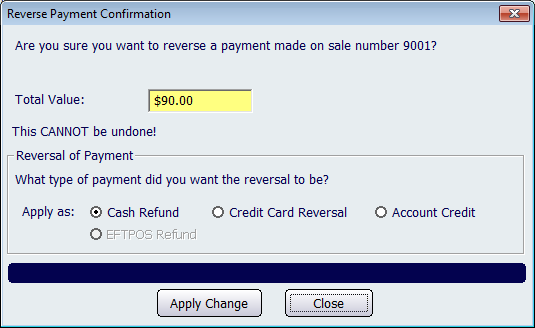
Figure : Reversing a customer payment
The Total Value field will be automatically populated based on what was entered into the Amount to Reverse field. Select the payment type that will be used to reverse the payment. The reversal types include: Cash Refund, Credit Card Reversal, Account Credit, and EFTPOS Refund.
Click on the Apply Change button to finalise the payment reversal. A Payment Receipt dialog will be displayed asking whether you want a payment receipt printed.
Once the payment has been finalised you will be returned to the Reverse Payment screen.
Click on the Close button to exit the Reverse Payment screen.