Cancelling Items
From Amicus


| Amicus | |
| Cancelling Items | |
| See Also Submit feedback on this topic | |
| Modules & Other Devices > Modules > Hospitality Module > Meal Order Table Service > Managing Meal Orders > Modifying an Open Order > Cancelling Items |
Glossary Item Box
As in any hospitality environment, items within an order may need to be cancelled. To cancel items in an order, you must first click on the item you would like to cancel. Once you have selected the item click on the Cancel Item button to cancel the selected item. Below is an example of how to cancel an item.
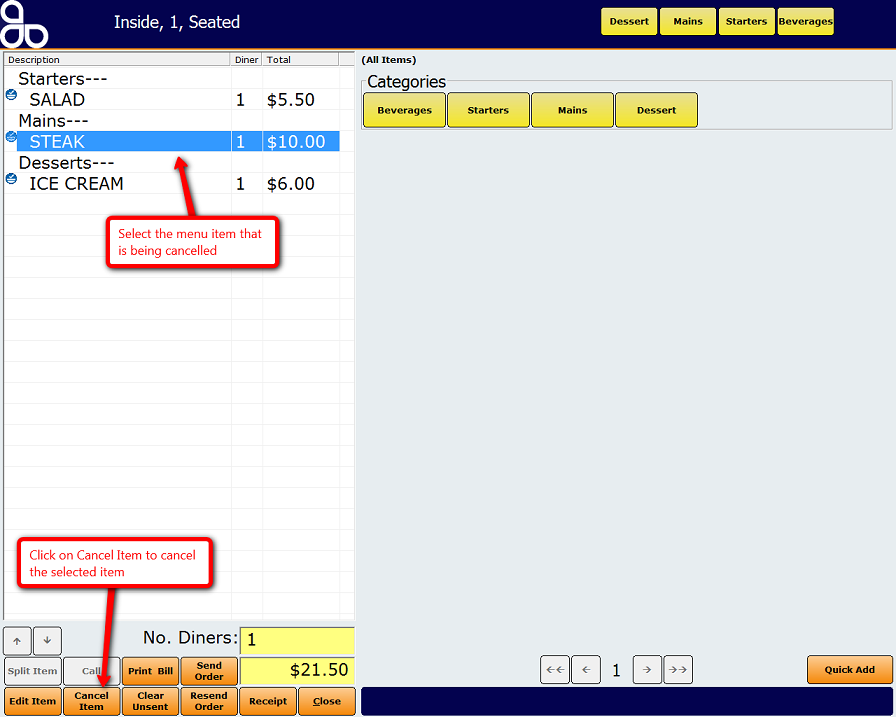
A screen will then appear confirming whether you would like to cancel the item. Click Yes to cancel the item otherwise click on No to exit the screen.
Once an order has been cancelled the logo next to the order will change.
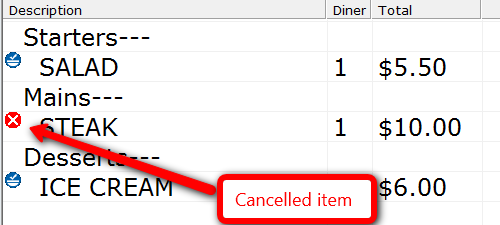
You can still un cancel the unsent cancellation. A guide on how to un cancel an order can be found on the Un Cancel Items Page.
Select Send Order to send a cancellation for the cancelled item only. The cancelled order item will then no longer be apart of the order.
See Also
Amicus Meal Order Table Service Module User GuideUncancel Items