Add A New Quote Or Order
From Amicus


| Amicus | |
| Add A New Quote Or Order | |
| See Also Submit feedback on this topic | |
| Key Areas > Customers > Common Tasks > Make An Order Or A Quote > Add A New Quote Or Order |
Glossary Item Box
To create a new quote or order, click on Customers from the Amicus Toolbar, click on Manage Customer Orders & Quotes and then click on New Quote or Order. Alternatively, you can access the Customer Quotation screen by clicking on Add New Order/Quote from the Manage Customer Quotes and Orders screen. Doing this will bring up the Customer Quotation page where you can add a new quote or order.
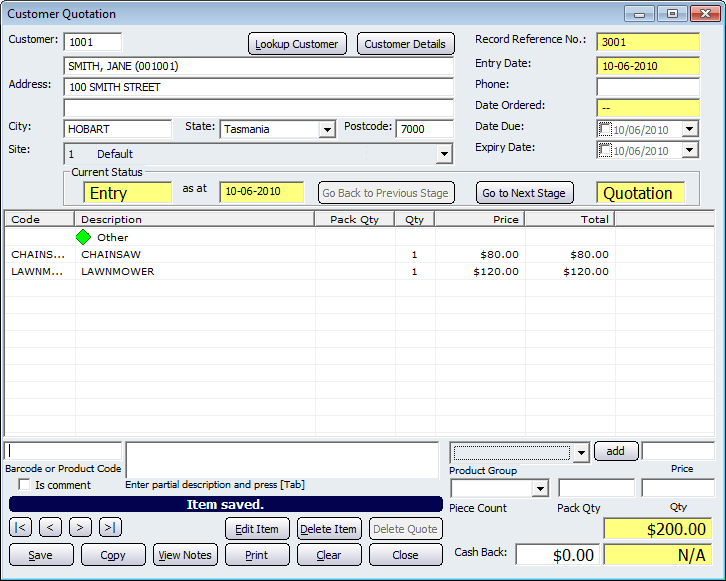
Figure : Creating a new order or a quote
Selecting a Customer
The first step you need to do once you are on the Customer Quotation screen is to add the customer for which the new quote or order is being done for. If you know the customers number, enter it in the Customer field and then press Tab or Enter.
If your customer has a bar coded Loyalty Card, you can scan their customer number using a bar code scanner. Alternatively, where you use Smart Cards, you can pass their Loyalty Card over the Smart Card reader.
If you want to bring up a list of all customers in NBS Amicus, click Lookup Customer. This will display the Select a Customer dialogue that will list all of the customers that exist in your database. Select the customer from the list and then click on the Select button. This will then populate the Customer Quotation screen with the selected customers information.
Click on the Customer Details button to bring up theAdd/Edit Customers Details tab where you can view the details pertaining to the customer.
Enter the Products
Enter the bar code or the product code of the product in the Bar Code or Product field. NBS Amicus allows several methods of entering this information.
-
You can use a bar code scanner and scan the products bar code or product code; or
-
You can manually type the products bar code or product code; or
-
In the Bar Code or Product field, you can type the beginning of a product or bar code, followed by an asterisk (*) and a window will open up containing all matching products. You can then select the product you want from this list; or
-
You can search for the product by entering a partial description in the Enter partial description & field and pressing Enter or Tab.
Some products may require you to enter or manually edit some details about the product, such as the quantity or price. You will be prompted when this is necessary. In these situations manually enter the number of units of the product being sold in the Qty field and the unit Price for each product. You can also add a product group using the add button.
Enter any comments by checking the Is Comment option and typing the details in the field with the label: Enter comment or product description.
The Cash Back Amount field enables you to specify a cash back amount for this quote or order, and a Total (with Cash back) amount is calculated.
Tracking Quotes and Orders
NBS Amicus tracks the progress of your quotation or order through your business from beginning to end with six preset steps. The steps are Entry, Quotation, Ordered, Picking, Picked and finally to Billing.
To select the stage of this quotation or order, use the Go to Next Stage function. If you need to go back a stage at any time, select the Go Back to Previous Stage function. As your quote or order moves through the six preset steps, NBS Amicus retains a complete audit trail to allow full reporting on all quotes and orders.
To delete an item from the quote or order altogether, select the corresponding line from the list and click Delete Item.
To perform a clear or cancel operation, select the Clear option to delete all information currently entered.
You may also choose to reprint this information via the Print function, or alternatively, you may choose the Print to Word option.
The Print to Word option creates a Word document that may be opened or mailed to your customer as either an attachment or as the original email document, depending on the options within your email software.
When you have advanced this quotation or order to the required stage, select Save. Select Close to exit the screen.
When an order is at the Picked stage it is ready to be invoiced to the customer. This is easily done by advancing to the next stage of Billing. The order will then automatically complete your sales screen with the details of the order. Complete the sale as normal. Once the sale has been finalised, NBS Amicus will give the order a status of Completed.
Record Controls
Buttons to perform actions on the displayed dialogue includes; < and >, allow you to respectively scroll forwards and backwards through the items on the screen one record at a time. To quickly find the first or last items record, click either the |< or >| key respectively. These buttons appear at the bottom of all Add/Edit dialog tabs providing access to all products, customers, suppliers, etc. ',event)">Navigational Arrows, Save, Copy, Clear, Print, Delete Item and Close.
View Notes opens the View notes & Articles for the customer quotation/order dialogue.