Quick Add
From Amicus


| Amicus | |
| Quick Add | |
| See Also Submit feedback on this topic | |
| Modules & Other Devices > Modules > Hospitality Module > Meal Order Table Service > Managing Meal Orders > Create an Order > Quick Add |
Glossary Item Box
The Quick Add button on the order screen allows you to quickly add items to an order. This helps to improve the speed and efficiency of the ordering process. To Quick Add an item to an order follow the steps below:
-
Select a category and further sub-categories until the items screen is displayed
-
Select the Quick Add button as shown in the example below. When the Quick Add button is active it will turn blue. Once it is selected you can quickly add an item to the order by selecting the item from the Items screen. The selected item will be added to the order and the Items screen will continue to be displayed to enable further choices to be added swiftly.
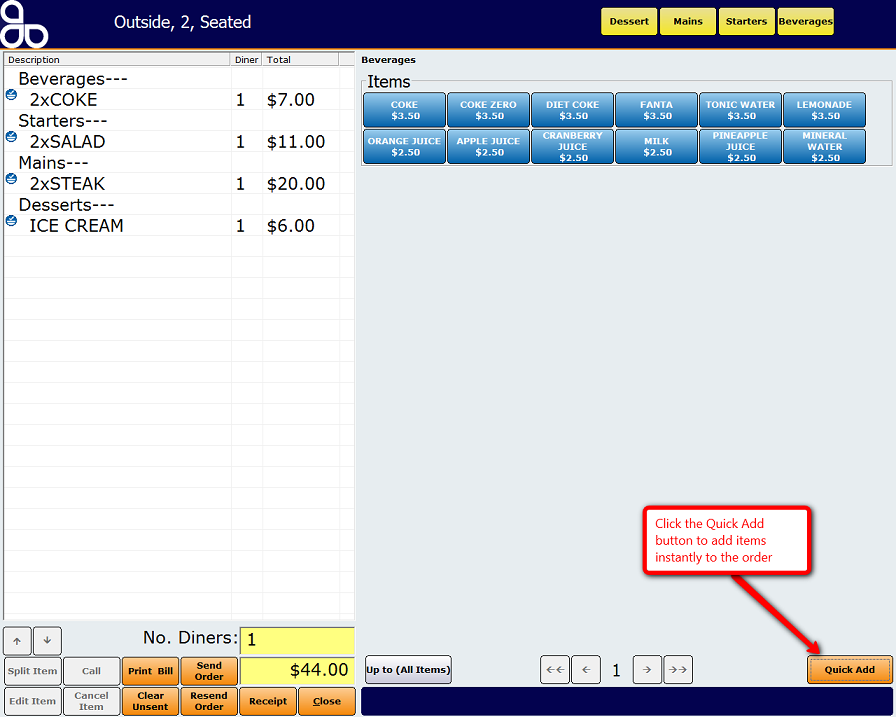
Figure : Item added with Quick Add
-
If you would like to turn off the quick add function then click on the Quick Add button again. Doing this will change the button colour from Blue (Active) to Orange (Inactive).
See Also
Amicus Meal Order Table Service Module User GuideCreate an Order
Adding items to the order
Change Price