Edit Customer Contracts
From Amicus


| Amicus | |
| Edit Customer Contracts | |
| See Also Submit feedback on this topic | |
| Key Areas > Customers > Manage Customer Contracts > Edit Customer Contracts |
Glossary Item Box
The Edit/View Contract Details function allows you to look at or to edit the details of an individual customer’s contract. This screen is availible from various locations within Amicus. You can access this screen from the Add/Edit Customers Contracts tab by clicking on the Add New Contract button.
Alternatively, you can access the screen below by clicking on Customers from the Amicus Toolbar, then clicking on Manage Customer Contracts and then selecting the Edit Contract button.
Doing either of these options will open up the following screen.
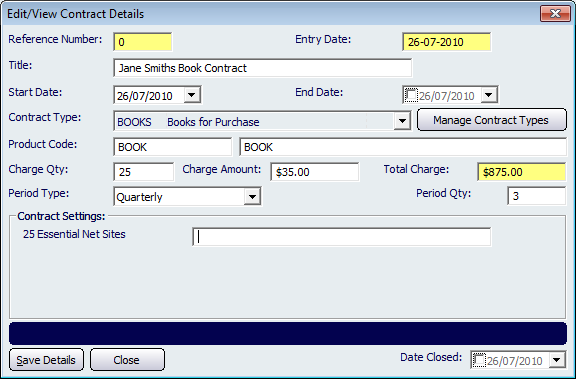
Figure : Editing the details of an individual customer’s contract
The dialogue includes fields which are automatically populated by NBS Amicus, these include; Reference Number, Entry Date and Total Charge which is calculated off the Charge Qty and Charge Amount fields. These fields are unable to be manually edited due to them being populated by Amicus.
Enter in the contract Title, Start Date and End Date, which by default is left blank to allow for a perpetual or continual contract.
Enter the Product Code, Charge Qty and unit Charge Amount. The frequency of payments is allocated by setting the Period Type and Period Qty. The Date Closed field is used to record when a customer contract has been terminated.
Select the Contract Type from the dropdown list or, if not contract types have been created, click on the Manage Contract Types button to create a new contract type.
Click on the Save Details button to save the customer contract or click on Close to exit the Edit/View Contract Details screen.