Changing Items
From Amicus


| Amicus | |
| Changing Items | |
| See Also Submit feedback on this topic | |
| Modules & Other Devices > Modules > Hospitality Module > Meal Order Table Service > Managing Meal Orders > Modifying an Open Order > Changing Items |
Glossary Item Box
As with any hospitality environment, orders may have to be changed. Amicus allows you to edit an order by the use of the Edit Item button on the Place an Order screen. To edit an item open up an existing order and follow the steps outlined below.
1. Select an item and then select the Edit Item button. This will then display the item Options on the right hand side of the order screen. The figure below shows where the Edit Item button is located. 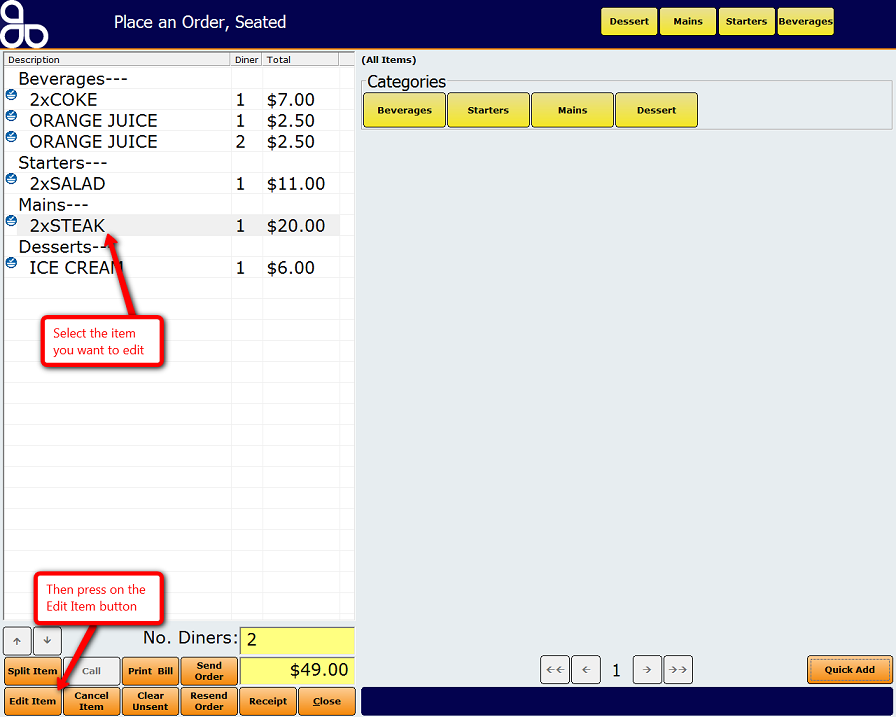 2. Select the required changes; these include courses, options, quantities and any notes.
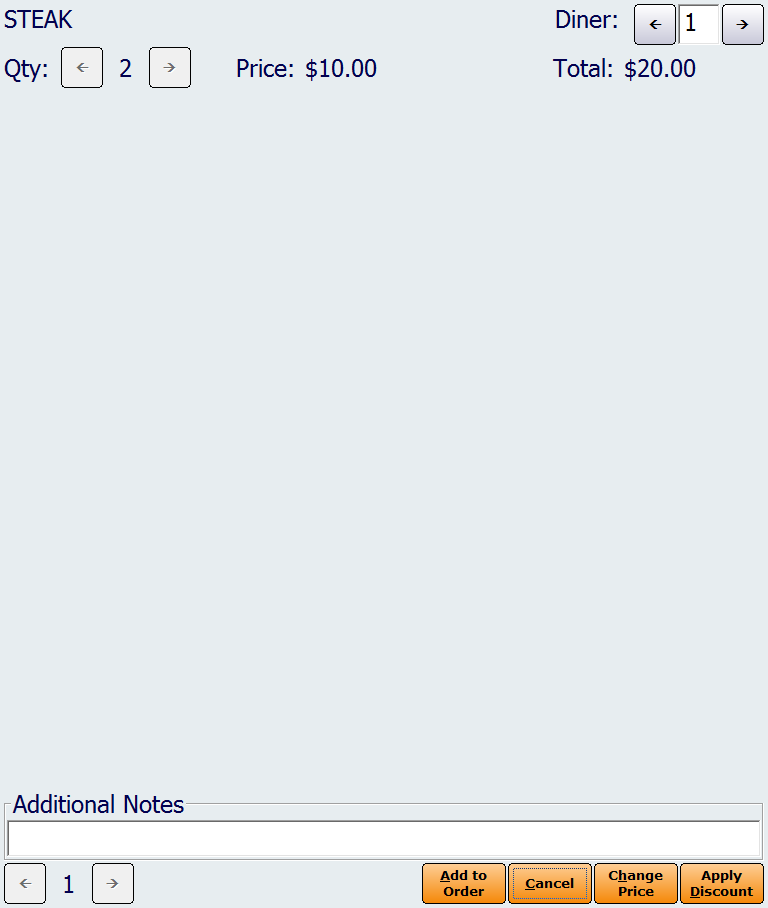
3. Select Add to Order to add the item to the order and return to the Place an Order screen.