Advanced Options
From Alchemex 7.1
Home >
Advanced Options
Using advanced options enables a user to apply advanced settings to a report.
To enable the Advanced Options
Menu on the Report Manager Interface you must check the Show
Advanced  check box.
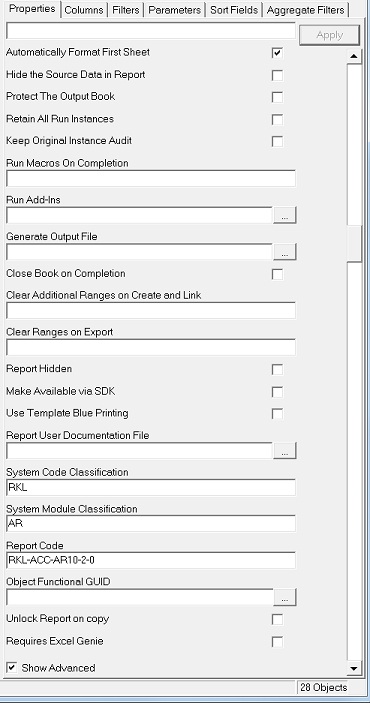
To enable the advanced features for your report you will need to check
 the box alongside the advanced option you wish to
enable. The Advanced Options features and their respective functions are
as follows:
the box alongside the advanced option you wish to
enable. The Advanced Options features and their respective functions are
as follows:
| Advanced Option | Description |
|---|---|
| Parameters on Second Sheet | An option to place the report runtime parameters on Sheet2 of the exported Microsoft Excel report. This could be very useful when Microsoft Excel formulae as per the actual report design depend on certain critical variables on Sheet2 |
| Report Locked | An option box to lock all Report Manager property fields of the selected report. Once it and the Apply button is selected, the user will be prompted to enter a case sensitive unlock password (entered twice to confirm) All tabs of the report (Properties, Filters, Columns etc.) will then be unavailable and no changes are further allowed. When changes need to made, the following need to be done:
|
| Show Distinct Rows | An Option Box to ensure that no duplicate records are exported. |
| Top Rows (Leave blank for All Rows) | Enter a numerical value of how many records (rows not including the heading row) should be exported, in accordance with the current report sort options |
| Automatically Format First Sheet | Ensures that, among others, any previous column row height or width changes made on Sheet1 of the relevant Microsoft Excel Template file are disregarded when the report is exported to the relevant Microsoft Excel Template file |
| Hide the Source Data in Report | An option box to ensure that the first worksheet of the exported Microsoft Excel file is automatically hidden If no other security restrictions are in place, then it may still be possible to right-click on any worksheet tab at the bottom of the exported Microsoft Excel file and select Unhide to open the Unhide screen to unhide any specific automatically hidden worksheets from the list |
| Protect the Output Book | An Option Box to ensure that the exported Microsoft Excel file is read-only and not editable by unauthorized persons |
| Retain All Run Instances | This is disabled by default for performance reasons. Saves report run instances for audit purposes |
| Keep Original Instance Audit | This is disabled by default for performance reasons. This saves a runtime snap shot of a report for audit purposes |
| Run Macros On Completion | Insert the name of a Microsoft Excel macro that is linked to the selected report’s linked template file. The moment the report has been exported successfully to Microsoft Excel, the specified macro will also execute on it. If there is more than one macro that needs to be run then separates their names with semi-colons |
| Run Add-ins | Use the browse button on the right to select relevant add-ins to link to the selected report. Reports can be exported to numerous other mediums besides Microsoft Excel, and the ability to execute a number of actions upon report runtime is available. These are all referred to as Add-ins and in detail discuss later in the manual |
| Generate Output File | Use the browse button on the right to specify the location and Microsoft Excel file name that need to be created alternatively to the normal Microsoft Excel exported file, when the selected report is run. Having a value here will therefore not export the report in the name format: TEMPLATE1, but instead in the specified file name E.g. If you don’t have a Generated Output File value upon report runtime, then, if the selected report’s template file is called XYZ then the exported file name will be called XYZ1.xls. Else with the Generate Output File value in place then the specified file name will be created |
| Close book on Completion | An option box to ensure that the Microsoft Excel Workbook is closed after running a report |
| Clear Additional Ranges on Create and Link | Data in all the Raw Data sheets get cleared when a Microsoft Excel book is linked to a report. If any additional ranges need to be cleared, name these ranges in this property |
| Clear Ranges on Export | Ranges are cleared when the report is exported. |
| Report Hidden | An Option Box to hide the selected report from the Report Folder. When this option and the Apply button have been selected, the report will suddenly disappear from the Report Manager interface To show hidden reports again, do the following:
|
| Make Available in Menus | An Option Box to make the selected report available from the front end of Sage Intelligence Reporting |
| Unlock Report on copy | Unlocks the report when the report is copied, thus keeping the original intact |
| Requires Report Designer | Indicates that this report has the functionality built into it to take advantage of the Microsoft Excel Report Designer plug-in to auto generate report layouts |
To hide the Advanced Option menu simply uncheck the Show Advanced check
box .