Edit Column Properties
From Alchemex 7.1
Home >
Edit Column Properties
To edit the Properties of a Column, select the Column you want to edit
and on the Toolbar click the Properties button  .
The Properties window will be displayed.
.
The Properties window will be displayed.
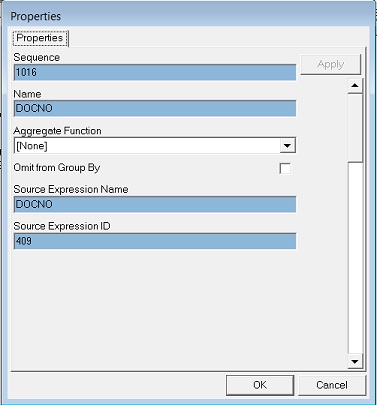
Whilst editing columns, you can change the Aggregate Function.
An example where you would use an Aggregate Function is if you want to sum sales by Customer.
Before using an Aggregate function, the report needs to have an unique identifier such as an Invoice number. Also ensure the report does not have too many variables, then the function will not work.
Use the drop down arrow on the Aggregate Function Field to make your selection as follows:
| Aggregate Function | Description |
|---|---|
| None | No aggregate function is applied to the Column and no data grouping occurs |
| Average | The average value for this Column will be used and the remainder of the fields which have no aggregate functions applied will be grouped into distinct rows |
| Count | A count value for this Column will be used and the remainder of the fields which have no aggregate functions applied will be grouped into distinct rows |
| Maximum | A Maximum value for this Column will be used and the remainder of the fields which have no aggregate functions applied will be grouped into distinct rows |
| Minimum | A Minimum value for this Column will be used and the remainder of the fields which have no aggregate functions applied will be grouped into distinct rows |
| Sum | A Sum value for this Column will be used and the remainder of the fields which have no aggregate functions applied will be grouped into distinct rows |
When you have made your selection click on OK.
Aggregate functions can be applied to multiple columns at once by selecting the columns, right-click and selecting Apply Aggregate.
Please note only value fields can have an Aggregate function.