Add or Remove Aggregate Filters
From Alchemex 7.1
Home >
Add or Remove Aggregate Filters
Adding or removing Aggregate Filters enables the user to refine or limit the rows of data that will be displayed in the report based on aggregation criteria (equivalent to a HAVING clause in SQL).
To add or remove Aggregate Filters from your report, select the report where you want to add or remove Aggregate Filters and then click the Aggregate Filters Tab.
Method
Click on the Add button

The Choose Filter Field dialog box will appear.
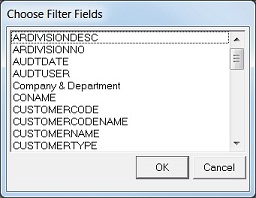
Select the Filter Field you would like to add to your report and click OK.
The Choose Comparison Method dialog box will appear.
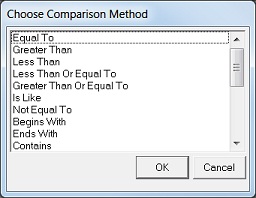
Choose your comparison method and click OK.
The Enter Comparison Value dialog box will appear.
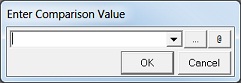
You may now either:
Enter your Comparison Value in the field provided, or
Use the lookup button
 to view a selection
Comparison Values, and click OK.
to view a selection
Comparison Values, and click OK.
Note: The Lookup facility will only be available if it has been enabled in the Connector for this expression. See Add Data Expressions.
Use the Select System Variable button
 to view a list of System Variables.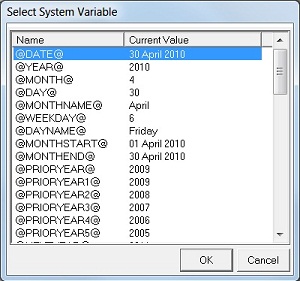
The new Aggregate Filter should now appear on the Aggregate Filters Tab with a default Aggregate Function of Count. To change the Aggregate Function select the Aggregate Filter and on the Toolbar select the Properties button. Select the Aggregate Function and click Apply.
Note: For further information about System Variables see System Variables.
To remove filters, in the Properties Window, select the Filters that you would like to remove and click the Remove button.