Quick Connect Dialog
From SecureCRT
A session is a set of options that are assigned to a connection to a remote machine. These settings and options are saved under a session name and allow the user to have different preferences for different hosts.
A data path or circuit between two computers over a phone line, network cable, or other means.
 Quick
Connect Dialog
Quick
Connect Dialog
The Quick Connect dialog (shown below) allows you to quickly define and connect to a remote host.
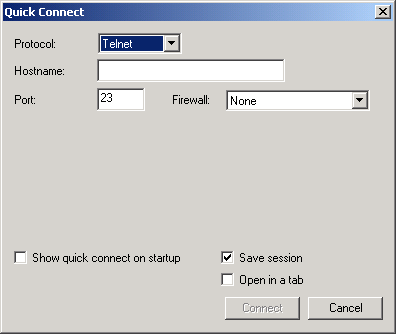
The Quick Connect dialog can be accessed by
clicking on Quick Connect... in the File
menu, by clicking on the Quick Connect button  on the SecureCRT
toolbar, or by entering the keyboard shortcut
on the SecureCRT
toolbar, or by entering the keyboard shortcut ALT+Q.
The Quick Connect dialog options are based
on the choice of Protocol In other words, if Telnet
is selected as the protocol, the options displayed on the dialog will
be different than if RLogin is selected. Below is a list
of the protocols and options available in SecureCRT.
Telnet/SSL Quick Connect Options
The Quick Connect dialog also contains the following options:
Show quick connect on start up
Check this box to have the Quick Connect dialog displayed whenever SecureCRT starts.
Save session
Check this box to save the session settings that have been defined. The session will be stored for future use under the specified hostname or IP address. To customize the behavior of a saved session, see the topics in the "Customizing Session Behavior" section.
Open in a tab
Opens the session as a tab in the session window.
Connect
Press this button to connect to the specified host. If the Save session option is selected, the session stored at this time.
Cancel
Press this button to close the Quick Connect dialog without saving the specified settings.