Connect Dialog
From SecureCRT
A session is a set of options that are assigned to a connection to a remote machine. These settings and options are saved under a session name and allow the user to have different preferences for different hosts.
 Connect
Dialog
Connect
Dialog
The Connect dialog (shown below) allows you to connect to a defined session or to create and connect to a new session.
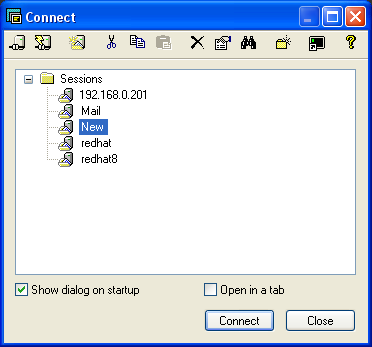
The Connect dialog can be accessed by clicking
on Connect... in the File menu, by clicking
on the Connect button  on the SecureCRT
toolbar, or by entering the keyboard shortcut
on the SecureCRT
toolbar, or by entering the keyboard shortcut ALT+C.
From the Connect dialog, you can connect to multiple sessions and folders. If multiple sessions or a folder is selected, the sessions will be opened in tabs. You can also select and edit multiple sessions from the Connect dialog; only the changed fields will be applied to the selected sessions, allowing specific settings to be changed for a group of sessions. When editing multiple sessions, SecureCRT will display the first session that was selected.
The toolbar on the Connect dialog provides quick access to the following actions:
|
Button |
Description |
|
|
Connect (Connect dialog): Connects to selected session |
|
|
Quick Connect: Brings up the Quick Connect dialog |
|
|
New Session (Connect dialog): Opens the Session Options dialog for a new session |
|
|
Cut: Clears the selected text and places it on the Clipboard |
|
|
Copy: Copies the selected text to the Clipboard |
|
|
Paste: Pastes the contents of the Clipboard |
|
|
Delete: Clears the selected text. |
|
|
Properties: Opens the Session Options dialog for the selected session. |
|
|
Find: Searches the contents of the session tree for a given string. The accelerator for this command is CTRL+F, and pressing the F3 key will result in a "find next" operation. |
|
|
New Folder: Creates a new folder in the folder tree list. |
|
|
Create Shortcut: Creates a desktop shortcut to the selected session. |
|
|
Help: Invokes the online help manual |


Organized in a folder tree arrangement, the list window of the Connect dialog lists the sessions that have been defined.
The Connect dialog also contains the following options:
Show dialog on startup
Check this box to have the Connect dialog displayed whenever SecureCRT starts.
Open in a tab
Opens the selected session(s) in a tab in the SecureCRT window. If this option is checked and there is a session open, the selected item(s) will be opened in the current window. If this option is unchecked and there is a session open, the selected item(s) will be opened as tabs in a new window.
Connect
Press this button to connect to the session selected in the session window.
Close
Press this button to close the Connect dialog.
If you want to share your SecureCRT and SecureFX configuration settings and want to see both the terminal emulation and file transfer sessions in your SecureCRT Connect dialog, right-click on the Connect dialog and check the Show Transfer Sessions option.