Select The Customer
From Amicus


| Amicus | |
| Select The Customer | |
| See Also Submit feedback on this topic | |
| Key Areas > Customers > Common Tasks > Enter Multiple Sales > Select The Customer |
Glossary Item Box
The first step to do once you are on the Enter Multiple Sales screen is to select the customer from your list of customers.
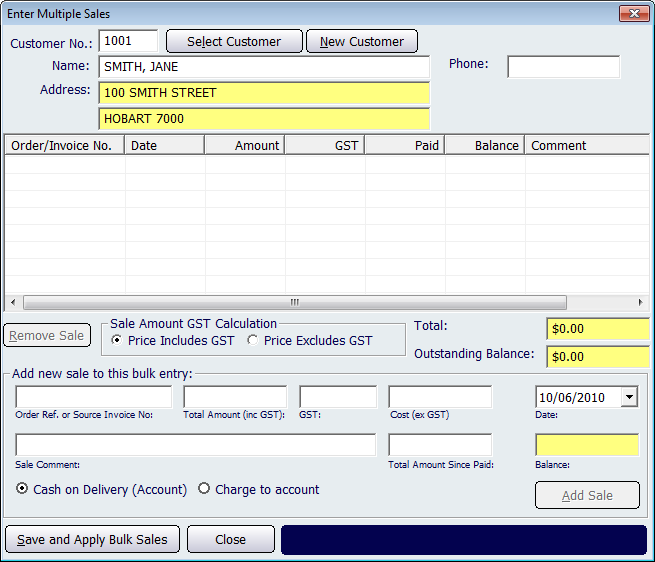
Figure : Enter Multiple sales screen
The top of the screen contains the customer information fields. If you know the customer number, enter it into the Customer No. field and then press Tab or Enter to select the customer. Alternatively, if your customer has a bar coded Loyalty Card, you may scan their customer number using a bar code scanner, or where you use Smart Cards, by passing their Loyalty Card over the Smart Card reader.
If you know part of the customer’s name, you can enter that information in the Name field and press Tab. A window will open up with all matching customers. Select the customer you want from the list and then click the Select button.
If you want to bring up a list of all customers in NBS Amicus, click Select Customer. This will bring up the Select a Customer dialogue that contains a list of all the customers that exist in your Amicus system. Select the customer from the list and then click on the Select button. This will then populate the customer fields with the selected customers details.
If this is a new customer, whose details you want to save, click New Customer. This will open the Add /Edit Customers screen that will allow you to enter the customer’s personal contact details and account details.