Receive Payment Screen - Changing the Payment Application
From Amicus


| Amicus | |
| Receive Payment Screen - Changing the Payment Application | |
| See Also Submit feedback on this topic | |
Glossary Item Box
By default, invoices will be paid in the order that they are listed, with NBS Amicus automatically paying off the oldest invoices first. If you want to change the order that invoices are paid off you will need to re-arrange the order. This is done by selecting the desired invoice on the list, or by highlighting the invoice with the cursor and then using either the Up Arrow or the Down Arrow to manually move the invoice in the list of outstanding invoices. Alternatively, enter the invoice number in the Invoice to Pay First field. This will move that invoice to the top of the list.
The Paid and New Balance columns in the list will tell you how much will remain outstanding after this payment has been deducted from each invoice.
If the customer has chosen to pay by Cash the Amount Tendered field will be enabled. Enter the actual amount of cash tendered or the face value of the gift voucher tendered. If this exceeds the Amount Paid, then NBS Amicus will calculate the Change due to the customer.
When you are satisfied with the order of payment of outstanding invoices, select Accept Payment Split.
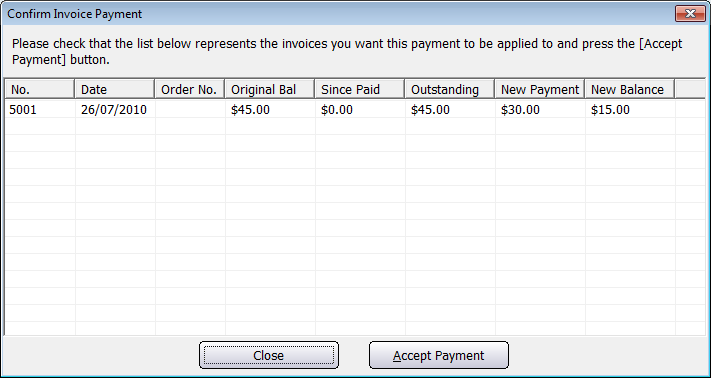
NBS Amicus will then ask you to confirm this account payment before it is processed. If everything is correct select Accept Payment Split for a second time. If you wish to change the details you have entered, click Close and you will be returned back to the Receive Payments screen.
Click on the Close button to exit the Receive Payments screen.