Product Stock Level Report
From Amicus


| Amicus | |
| Product Stock Level Report | |
| See Also Submit feedback on this topic | |
| Reports > Product Reports > Product Stock Level Report |
Glossary Item Box
This report lists the levels of all items since the last stocktake period. Note the report can give summaries of item levels from a given time stamp, this can require the database to calculate stock levels for all items up to the stocktake period before the given date and may take a long time to perform the operation.
Click Reports on the Main Menu, followed by Product Reports then Product Stock Level Report option. Alternatively, click Products on the Toolbar followed by Reports, Product Reports then Product Stock Level Report option.

Figure : Product Stock Level Report options
Options
Select the date when to calculate stock level on or todays date by checking Now this is used in conjunction with the Stocktake date.
NOTE: Please keep checked unless absolutely necessary as the process will revert back to the closest stocktake to the date asked and subtract all transactions on each product requested.
Select the Site, Department, Sub-Department, Product Code, Supplier, Manufacturer, Storage Location, Product Group and check Include Stock As Component to list components.
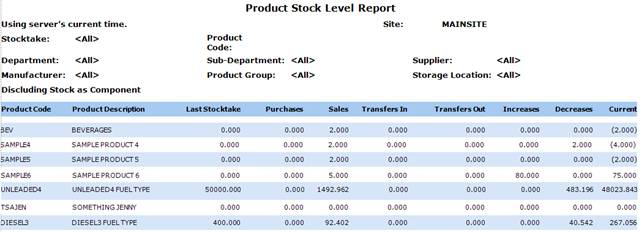
Figure : Product Stock Level Report sample report
Filters
The selected filters displayed on the report include; Site, Department, Sub-Department, Product Code, Supplier, Manufacturer, Storage Location, Product Group, Stocktake.
Details
The report displays stock levels by; Product Code, Product Description, the count of items in the Latest Stocktake, count of Purchases since last stocktake, number of Sales since last stocktake, number of Transfers In/Out since last stocktake, count of product Increases / Decreases with since last stocktake and the Current number of items in stock.