How to open a till session
From Amicus


| Amicus | |
| How to open a till session | |
| See Also Submit feedback on this topic | |
| Key Areas > Sales > Common Tasks > Supervisor Tasks > Till Actions > How to open a till session |
Glossary Item Box
Before you can open the till you must first configure the till not to auto open. To do this click on File from the Amicus Toolbar, click on Preferences and then click on This Register. Navigate to the Behaviour tab and un tick the Auto Open checkbox. Once you have done this Apply the change and Close the screen.
The next step is to close the till. To do this click on Sales then Till Actions and click on Close Till. Click Yes on the Close Till dialog that appears.
Now click on Sales from the Amicus Toolbar followed by Till Actions then Open Till. The Open Till dialog will be displayed.
As this function is generally an administration function, you may be prompted to enter your supervisor Password or Key Code or to swipe your Employee Card.
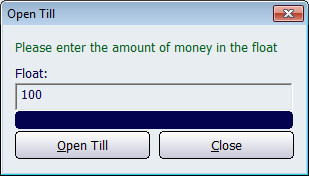
Figure : Open Till dialog
Enter the amount of cash that you are putting into this register’s float in the Float field and click the Open Till button. This starting float amount will be displayed as Cash In on the Balance Till screen. If the value is left blank, then the user will be asked if they are sure that they do not want to use a float.
This process can be automated by using a pre-defined float value. For more information on how to do this, refer to the Behaviour page.