Adding menu items to the order
From Amicus


| Amicus | |
| Adding menu items to the order | |
| See Also Submit feedback on this topic | |
| Modules & Other Devices > Other Devices > PDA > Smart Docket > Order Creation in Smart Docket > Adding menu items to the order |
Glossary Item Box
To add items to an order:
-
Select a category from the Choose Menu Item to Add screen to display further choices.
The choices available to users depend on how the menu has been created. After selecting a category either sub-categories or items will be displayed.
-
Select further sub-categories until the items screen is displayed.
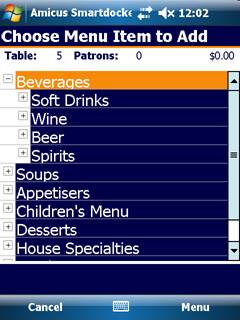
Figure : Sub-category screen
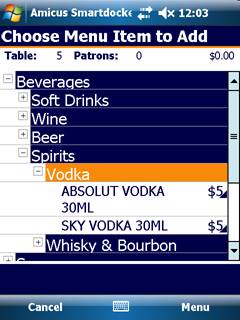
Figure : Items screen shows the items for the Beverages >Spirits > Vodka categories.
-
Select an item to display the Select Menu Item Options screen, shown in Figure 9.
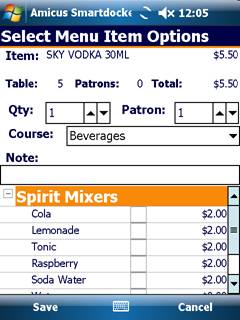
Figure : Select Menu Item Options screen
Options are the details for the chosen menu item. The name of the item will be displayed at the top of the screen.
Select Menu Item Options screen elements
Item — The name and price of the menu item. In Figure 9, Sky Vodka 30ML, $5.50 respectively.
Table — The number of the current table.
Patrons — The position number of the diner placing the order.
Total — Displays the total of this order to date. This field will be updated when any change is made to the items.
Quantity — Use the up and down arrow buttons to increase or decrease the quantity of the selected option. Some items will have a maximum or minimum number of selections.
Patron — Use the up and down arrow buttons to enter the position number of the diner placing the order.
Course — A list of courses to select from. In Figure 9, the course is Beverages. Some items can be selected as different courses, such as, Mains or Entrees.
Note — Supplementary notes can be added. Select the  button to display a virtual keyboard.
Options — A list of the individual options and their price, to select from. In Figure 9, Spirit Mixers are the options.
Save — Adds the selected item and options to the Place an Order screen.
Cancel — Closes the Select Menu Item Options screen and returns to the Choose Menu Item to Add screen.
-
Select the required course, option, quantity and add any notes.
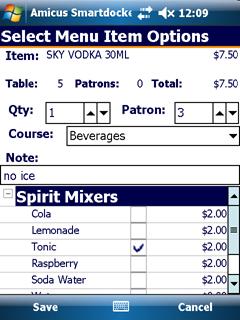
Figure : Selected Menu Item Options
-
Select Save to add the item to the order and display the Place an Order screen.
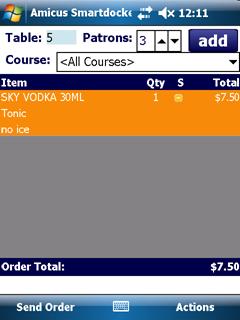
Figure : Place an Order screen with items added