Windows Scheduler Example
From Alchemex 7.1
Home >
Windows Scheduler Example
- Select the report that you wish to schedule in the Report Manager.
- Click on the Schedule Icon
 on the toolbar or
right-click on the report and choose Generate Scheduler Command.
on the toolbar or
right-click on the report and choose Generate Scheduler Command. - If the report expects parameters then you will be prompted to enter these.
- A message box will then appear that will display the syntax for running the report.
- Additionally this text will be placed on the Windows clipboard so that it can be pasted into the scheduled task command field.
Reports that are Scheduled are closed on completion and therefore must use the Generate Output Advanced report or the Retain Run Instances option to be useful. See Advance Report Properties for more information.
- Open the Windows Control Panel and then open the Administrative Tools, Task Scheduler item.
- From the menu choose Action, Create Task.
- The Create Task window
will appear.
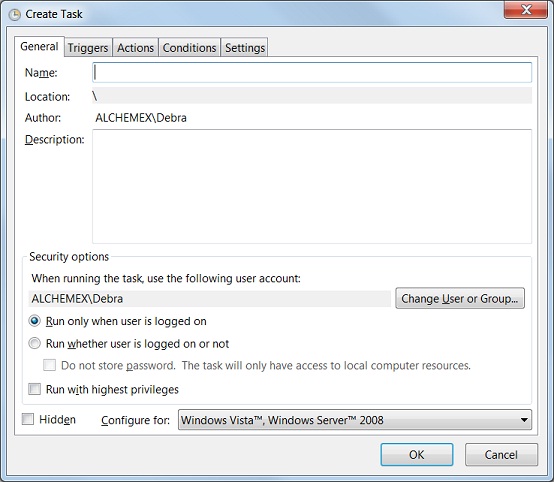
- Give the task a meaningful name.
- Click on the Actions tab.
- Click New.
- Under Program/script, paste the command from the clipboard.
- Click OK.
- Confirm the arguments specified by clicking Yes.
This Task pane is shown below:
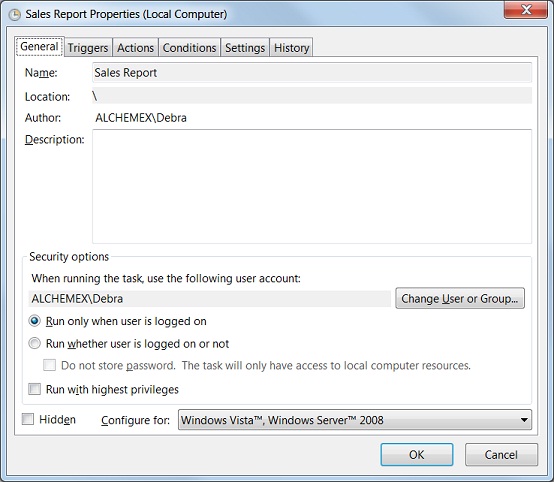
- In the When running the task, use the following user account box enter the user name that should be used to run the report under (for domain user accounts use the format domain_name\user_name) . The user name must be a valid account on the domain or local machine with sufficient privileges to run Sage Intelligence Reporting.
- To set the Schedule for the Task click on the Triggers Tab.
- Click the New button.
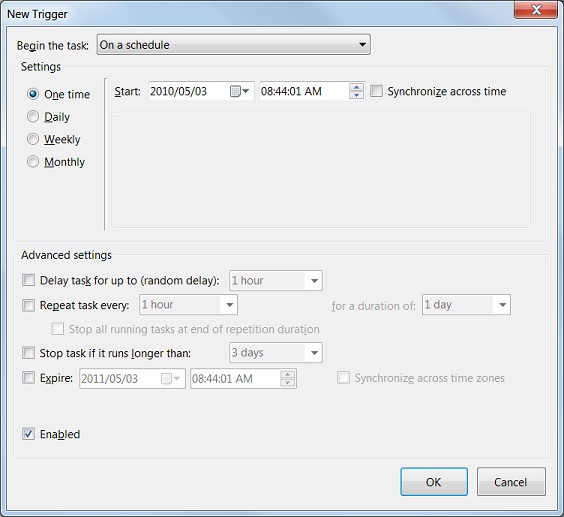
- When you have set the schedule options click the OK button.
It is important to understand that the user account that is used for the scheduled report must have sufficient permissions to access all the necessary resources to run the Sage Intelligence Reporting report. It is best to log on to the machine that will be running the scheduled report as that user and test that the report can be run interactively under the user account before using the account for scheduled reports.
For more information about how Sage Intelligence Reporting reports are scheduled and checking log file information please click here. For more detailed information on the windows scheduling options see the Windows Help files.