Hide Zero Rows
From Alchemex 7.1
Home > Custom Add-In for Excel > Hide Zero Rows
Hide Zero Rows
The Hide Zero Rows tool is an add-in which can aid in the analysis of data. Specifically the tool allows rows within a selection to be hidden based on a zero value in a specified column. This can be particularly useful when viewing financial type reports.
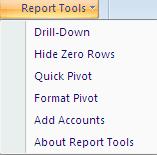
To use the tool select the Hide Zero Rows option from the Report Tools menu within Microsoft Excel.
Choose the range to perform the operation on and the column that contains the value to check for zeros. Then click OK. See the window below.
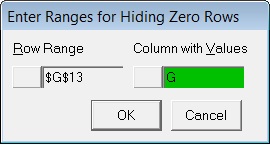
The rows within the Row Range that have a zero value in the column specified in the Column with Values box will be hidden.
Note: If the function is reused on an overlapping range with hidden rows already then the rows are unhidden before performing the operation.
To unhide hidden rows in a range use Microsoft Excels standard Unhide function. To do this select the row range that includes the hidden rows to unhide then right-click and choose Unhide.
Tip: Should you wish to hide zero value rows but only when based on a certain condition, then using a normal Microsoft Excel formula, create another column containing the formula based on the condition which will result in specific rows being zero, then configure that column as the Column with Values in the Enter Ranges for Hiding Zeros screen.
Example: To hide a Year to Date column of values but only if there was no movement in the other monthly columns. In this case using the Year to Date column as the column with values would not work.