Edit Filter Properties
From Alchemex 7.1
Home >
Edit Filter Properties
To edit the properties of a Filter, select the Filter you want to edit
and on the Toolbar click the Properties button  .
The Properties window will be displayed.
.
The Properties window will be displayed.
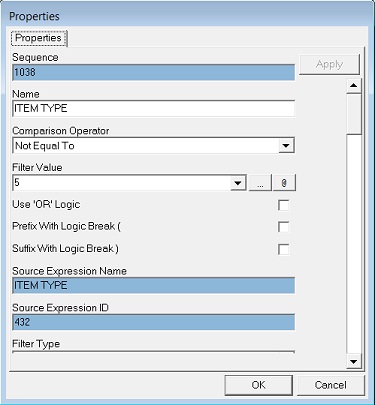
Enter your amendments in the active fields provided. For more help see using Comparison Operators.
Select the check box options according to your requirements as follows:
| Check Box Option | Description |
|---|---|
 |
By default when multiple filters are used on a report they are applied using Boolean AND logic. So for data to satisfy filters with AND logic all the filters must evaluate to true. When OR logic is used only one of the filters needs to evaluate to true |
 |
Where complex Boolean Logic is needed for combing filters that use combinations of AND and OR logic then logic breakers can be used to group filters together. Use this setting to prefix the filter with a logic breaker |
 |
Where complex Boolean Logic is needed for combing filters that use combinations of AND and OR logic then logic breakers can be used to group filters together. Use this setting to suffix the filter with a logic breaker |
When you have entered your selections click on OK.
Column to Column Filtering
To filter data based on a comparison between two expressions, follow the steps below:
- First add a normal filter as in Adding a Filter Topic choosing one of the Container fields that should participate in the Column to Column filter.
- Then select the newly added filter (or Aggregate Filter) on the reports Filters Tab.
- Press the Properties button on the Toolbar.
- Scroll down on the properties window to the property Filter Type. Change the Filter type from Normal Filter to Column to Column Filter and click Apply.
- The Property screen will update and the Comparator property will now be a drop down box of the available columns to Compare with.
- Choose the column to compare with and apply the changes.
For a Column to Column filter the property window should look like this:
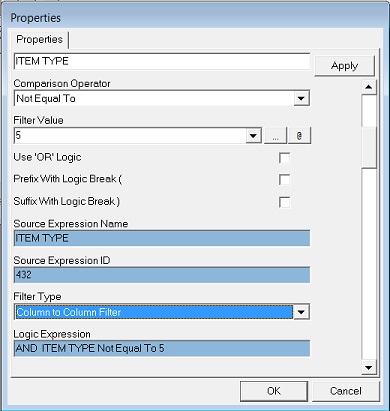
Note : Should you wish to export a report that uses a Column to Column filter, then on import thereof you have to reset the column to column filter. This is due to the fact that the expression ID on the column before export will not be the same as the expression ID on that same column after import.