Add a Data Connection
From Alchemex 7.1
Home > Connector > Data Connections > Add a Data Connection
Add a Data Connection
A Data Connection holds the relevant connection information to connect to a supported ODBC or OLEDB compliant Data Source. This Data Connection object is then used for all connections to this Data Source. By adding a Data Connection the Connector can make data available from this Data Source.
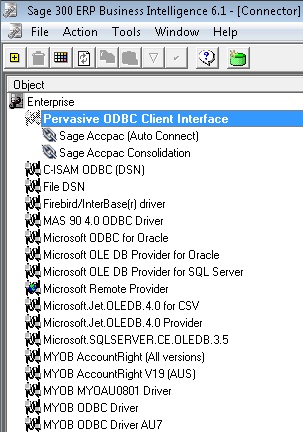
To add a new Data Connection, double click on and select the relevant Connection Type (driver) to use for the Connection by clicking on it in the object window, for example, select .
Add a Data Connection:
- On the Toolbar, click the Add
button
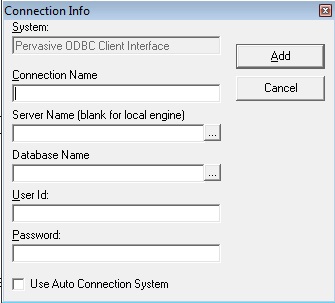
 . The Connection
Info dialog box appears.
. The Connection
Info dialog box appears. - In the Connection Name box type the name of your connection. Note: Depending on the Connection Type of the Connection being created, certain values will need to be entered to specify how the data is accessed (some connection types will allow you to browse for data using the buttons to the right of the text boxes). Where paths or folder names are required for creating a Data Connection always use the Universal Naming Convention as opposed to using drive mappings. For example \\Servername\c\mydata\ as opposed to X:\mydata where X is a mapped drive to \\Servername\c\. This will ensure that reports against this Data Connection can be run from any workstation regardless of drive mappings.
- In the Server box, browse to or add your server name.
- in the Database Name box, enter the name of your SQL Database.
- In the User Id: box type your User Id: if you have security settings on the data folder.
- In the Password box type your password for the above entered User Id.
- Click on Add. The new Connection will now appear in the Object window.
- To test the Connection;
On the Toolbar, click the Check/Test
 button.