 How?
How?- Select the cell that contains the formula.
- In the formula bar
 , select the reference you want to change.
 - Press F4 to toggle through the combinations. The "Changes To" column reflects how a reference type updates if a formula containing the reference is copied two cells down and two cells to the right.
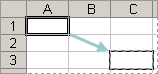
Formula being copied
| Reference (Description) | Changes to |
|---|---|
| $A$1 (absolute column and absolute row) | $A$1 |
| A$1 (relative column and absolute row) | C$1 |
| $A1 (absolute column and relative row) | $A3 |
| A1 (relative column and relative row) | C3 |
-
You can also copy formulas into adjacent cells by using the fill handle
 . Select the cell that contains the formula, and then drag the fill handle over the range you want to fill.
 - You can also move formulas by dragging the border of the selected cell to the upper-left cell of the paste area. Any existing data is replaced.