Connecting with the Connect Dialog
From SecureCRT
A session is a set of options that are assigned to a connection to a remote machine. These settings and options are saved under a session name and allow the user to have different preferences for different hosts.
 Connecting
with the Connect Dialog
Connecting
with the Connect Dialog
The Connect dialog
can be accessed with the Connect button  on the toolbar or by selecting the Connect
menu item from the File menu. In order to connect
to a remote machine using the Connect dialog,
you must select a previously created session.
on the toolbar or by selecting the Connect
menu item from the File menu. In order to connect
to a remote machine using the Connect dialog,
you must select a previously created session.
You can quickly create a new session by clicking on the New Session
button  , or by right-clicking on any folder in the
Connect dialog and selecting New Session
from the pop-up menu. If you would like to learn more about creating new
sessions, see Creating a New Session with Connect.
, or by right-clicking on any folder in the
Connect dialog and selecting New Session
from the pop-up menu. If you would like to learn more about creating new
sessions, see Creating a New Session with Connect.
To connect using a session you have already created, select the session and click on the Connect button. You can also connect to a session by double-clicking on the session name or by right-clicking on the session name and selecting Connect from the pop-up menu.
To display the Connect dialog automatically at startup, select the Show dialog on startup option found in the lower left corner of the Connect dialog.
To open the selected session as a tab in the SecureCRT window, select the Open in a tab option.
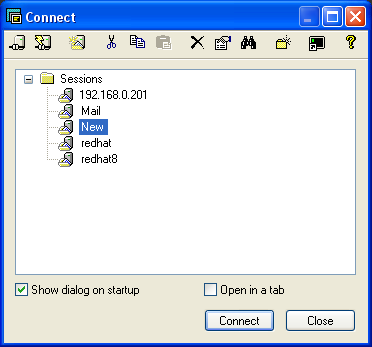
Connect Dialog