Changing Session Options
From SecureCRT
A session is a set of options that are assigned to a connection to a remote machine. These settings and options are saved under a session name and allow the user to have different preferences for different hosts.
A data path or circuit between two computers over a phone line, network cable, or other means.
 Changing
Session Options
Changing
Session Options
Changing session options is done with the Session Options dialog. The Session Options dialog is accessed in a variety of ways.
If you are not currently connected with a session to a remote machine:
1. Open
the Connect
dialog by clicking on the Connect button  , or by opening the File
menu and selecting the Connect menu item.
, or by opening the File
menu and selecting the Connect menu item.
2. Select the session listed in the Connect dialog that you would like to edit.
3. Open
the Session Options dialog by either clicking on the Properties
button  , or by right-clicking on the target session
and selecting Properties from the pop-up
menu. You can also open the Session Options
dialog by selecting the target session and using the ALT+ENTER
hot-key sequence.
, or by right-clicking on the target session
and selecting Properties from the pop-up
menu. You can also open the Session Options
dialog by selecting the target session and using the ALT+ENTER
hot-key sequence.
If you are connected with a session to a remote machine and would like to edit the current open session:
· Open
the Session Options
dialog by either clicking on the Properties
button , or by opening the Options
menu and selecting the Session Options... menu item.
The Session Options dialog (Session Options Dialog below) is divided into two major sections: an options category tree view, and an options category panel. The options category tree view allows you to select the category of options you wish to change. The options category panel displays all the options associated with the category selected in the options category tree view. For example, in the figure below, the Connection category is selected, and all of the options associated with the Connection category are displayed in the options category panel.
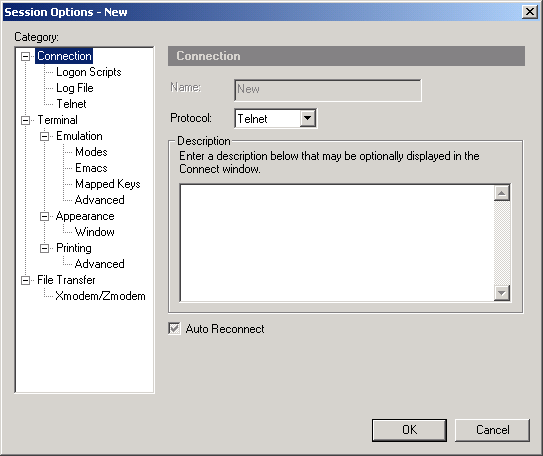
Session Options Dialog