Arranging Entries in the Connect Dialog
From SecureCRT
A session is a set of options that are assigned to a connection to a remote machine. These settings and options are saved under a session name and allow the user to have different preferences for different hosts.
 Arranging
Entries in the Connect Dialog
Arranging
Entries in the Connect Dialog
By default, SecureCRT maintains the list of entries in the Connect dialog in alphabetical order as depicted in the sample sessions and folders listed in the Connect dialog shown in Connect Dialog: Arranged In Alphabetical Order below.
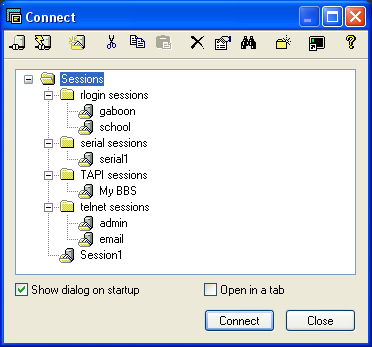
Connect Dialog: Arranged In Alphabetical Order
The list of entries in the Connect dialog are automatically arranged in alphabetical order by SecureCRT as long as the User Arranged Tree option is disabled.
Enabling the User Arranged Tree option (see below) allows the user to manually arrange the entries in the Connect dialog. With the User Arranged Tree option enabled, the user can easily move individual sessions or even entire folders using drag-and-drop operations. In Connect Dialog: Manual Arrangement Using Drag-and-Drop Operations below, the user is in the process of manually arranging the school session to reside in front of the gaboon session in the rlogin sessions folder using drag-and-drop operations.
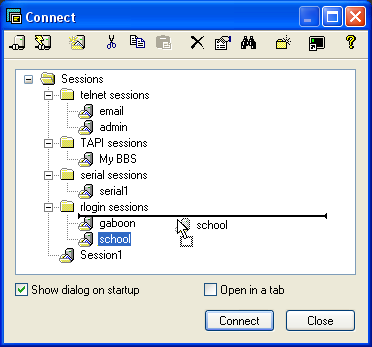
Connect Dialog: Manual Arrangement Using Drag-and-Drop Operations
Enabling/Disabling User Arranged Tree
There are two methods to enable/disable the User Arranged Tree option in SecureCRT:
· Use the Connect dialog's pop-up menu:
1. Right-click on any entry listed in the Connect dialog.
2. If User Arranged Tree is currently enabled, the User Arranged Tree menu item in the pop-up menu will have a check mark next to it. To enable/disable this option, select User Arranged Tree from the pop-up menu.
· Use the Global Options dialog:
1. Open the Global Options dialog.
2. Select the General category in the Global Options dialog.
3. In the Sessions group, select/deselect the Sort Connect Dialog entries alphabetically option.