Dynamic Input
From ControlPad
Dynamic Input
Each command may contain a special tag that tells ControlPad that you wish to provide further input at execution time.
The syntax of this tag is:
~Input:<Dialog Caption>~
For example, a command that contains this code:
~Input:Enter Search Term~
Will open this dialog when the command is executed.
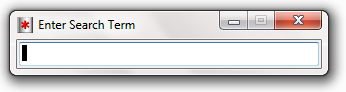
This feature is particularly useful when you wish to have ControlPad prompt you for additional command arguments or URL parameters (e.g. for search engines).
Example
http://www.example.com/?q=~Input:Search Term~
When this command is executed, it will open an input box with the caption "Search Term" and when you enter your search term, it will launch the URL http://www.example.com/?q=YourSearchTerm in your default browser.
Note that while this feature was primarily designed to allow dynamic web address execution, it will also work with any other command.
The only difference being that when a command is a web address (starts with http), any space in the input string will be URL-encoded (replaced by %20).
Quick Search Engine Integration
In order to make use of this feature easier, ControlPad is configured to automatically replace the string "TEST123" (without the quotes, all in capital letters) in any URL you input through the Add Command dialog.
In order to quickly enable Dynamic Input on your favorite search engine, follow these steps:
- In your browser, go to your desired search engine.
- Search for TEST123 - all uppercase, no spaces.
- Copy the result URL.
- Paste it as a command in the Add Command dialog.
ControlPad will replace your TEST123 string with "~Input:Input~" which will prompt you for a new search term when the command is executed.
The input dialog, by default, will have the caption "Input" - you can easily change this by editing the command and replacing the message after the : character to anything you want.