Operating ControlPad
From ControlPad
Operating ControlPad
The Code Window is where you enter your code
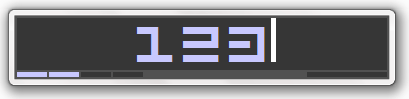
The Command Dialog is where assign the command to be executed for each code

Assigning Commands to Codes
To add commands to your ControlPad, follow these steps:
- Activate the Code Window (press and hold the * key on the numeric keypad).
- Enter a numeric code or a word.
- Press the / key on the numeric keypad to open the Command Dialog.
- Type the new command in the new dialog,
or
Browse your computer by pressing the ... button.
or
Insert a keystroke by pressing the { } button.
Assigning Commands to SpeedPad Keys
The SpeedPad feature lets you assign commands to the numeric keypad keys 0-9 and the numeric keypad Dot key.
Commands associated with these keys may simply be executed by pressing the key when the Numlock key is turned off.
Make sure that the SpeedPad menu item is checked in the system tray menu.
To add commands to one of the SpeedPad keys, follow these steps:
- Activate the Code Window (press and hold the * key on the numeric keypad).
- Enter a dot (.) followed by any digit or another dot (example).
- Press the / key on the numeric keypad to open the Command Dialog.
- Type the new command in the new dialog,
or
Browse your computer by pressing the ... button.
or
Insert a keystroke by pressing the { } button.
Editing Commands
You may edit your previously assigned commands by following the same steps above. Pressing the / button will open the Command Dialog and it will be pre-populated with your previous command path, if set.
The Code List Window
For a quick reference of all of your codes, open the Code List window (through system tray or code 902).
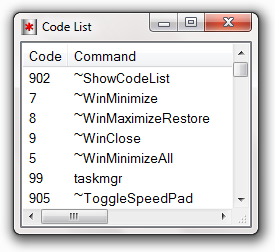
In this dialog you may:
- View all your codes and associated commands.
- Run a command (double click or Enter).
- Delete a command (Del).
- Press ESC to close it.
Manual Edit
In addition to adding commands through the user interface, you may wish to add/edit commands directly in the commands file.
All the commands are stored in a single file - Commands.ini - which is located in the installation folder (by default).
This file is of a standard INI fodmat:
For example:
You may access the INI file by entering the code 900 or by right clicking the system tray icon.
Working with the Code Window
WHen the input code window is open you may:
- Press the minus key (-) on the numeric keypad to close it.
- Press the ESC key to close it.
- Press the asterisk key (*) again to empty it.
Configuring ControlPad
All of ControlPad's settings are stored in a single INI file - ControlPad.ini
You may access the options dialog through the system tray menu or by entering the code 901.
Laptop Mode
If your keyboard does not have a numeric keypad, you may enable Laptop Mode in the Options dialog to assign F12 as the activation key.