Using Excel Formulae in Data Expressions
From Alchemex
Home > Connector > Data Expressions > Using Excel Formulae in Data Expressions
Using Excel Formulae in Data Expressions
There are two ways of using Excel Formulae in Data Expressions. You can either choose to add an Excel Formula from the add data expression field or you can add a normal data field and then change its properties to an Excel Formula.
To add an Excel Formula from the Add Data Expression window:
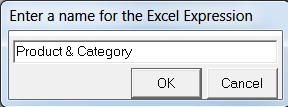
- Once you choose Excel Formula you are prompted to type in name for the expression as shown below:
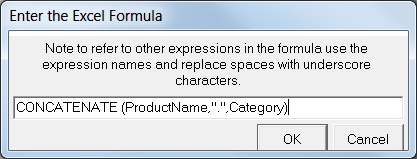
- Type in a name then click OK. The following screen displays, prompting you for the Excel formula:
- Type in the formula, then click OK.
The other method in creating Excel Expressions is as follows:
Add a data expression by using the normal method (see Adding Data Expressions).
On the properties window of the new data expression, change the Expression Type from a Data Field to an Excel Formula.
In the Expression Source field, type in the correct syntax for the expression type chosen, then click the apply button. An example of what the properties window should look like is shown below.
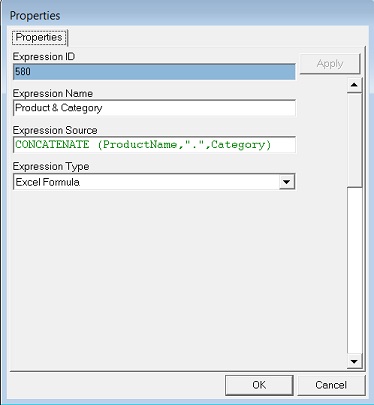
Here the standard Excel CONCATENATE function has been used to combine the contents of the two Data fields ProductName and Category and with a dash in between them. Note that the formula does not begin with an Equal sign. Sage Accpac Intelligence allows the names of Columns to be used in the Excel Formulae through the way it applies named ranges to the raw data sheet in a report. Where the word ProductName has been used then the report is resolving this through a named range for that column. The Data Expressions ProductName and Category must be included as Display Columns in your report for this Excel Formula Data Column to work.
For more information on understanding how Sage Accpac Intelligence applies Named Ranges to its data area see the topic How Data is Rendered. For further information on the Excel Functions that can be used refer to your Microsoft Excel Help file.